
Connect Wealthbox
Connect Wealthbox and put your records on the map.
Put your Wealthbox contacts and households on the map to plan client reviews and events by area and see where your book of business is concentrated.
1. Open Data Sources
In GeoMaps, open the menu in the top-right corner of the map and choose Data Sources. Add a new source and select Wealthbox to open its connection form.
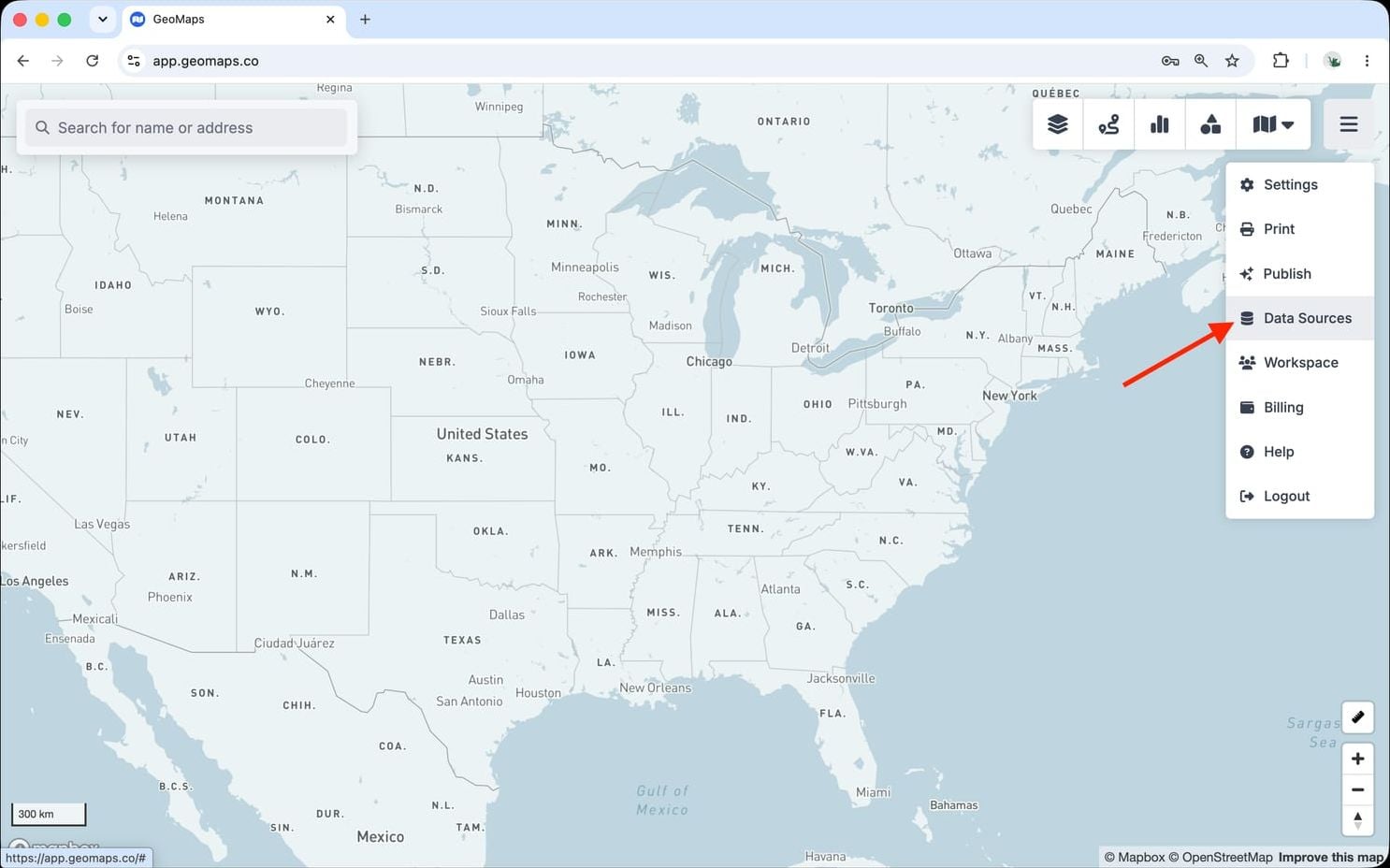
2. Connect Wealthbox
Wealthbox connects with an API access token.
- In Wealthbox, open Settings → API Access and click Create Access Token. Create it as an admin user: a token only sees what its user can see.
- Paste it into the API Access Token field in GeoMaps, then connect.
- Choose the objects to import — Contacts and Opportunities.
Contacts include people, households, organizations and trusts (filter on Record type to map one kind), each placed at its principal address. Opportunities are placed at their linked contact's location automatically, and won and lost ones are included.
3. Choose what to map
Pick the object(s) you want to plot and confirm which field holds the address (GeoMaps suggests one for you). Every record is geocoded and dropped on the map, then kept in sync on a schedule as your data changes.
Good to know
- GeoMaps only reads your Wealthbox data. Make changes in Wealthbox and they reach the map at the next sync.
- Sync: GeoMaps re-reads Wealthbox about once an hour, within Wealthbox's API rate limit.
- Private records of other users aren't visible to your token, so they aren't imported.
- Owners: to let each advisor see only their own records, choose Assigned to (contacts) or Manager (opportunities) as the owner field. See Managing who sees your data.
Troubleshooting
- "Wealthbox didn't accept that API access token": the token was mistyped or deleted. Create a new one in Settings → API Access.
- "This Wealthbox access token belongs to a different Wealthbox workspace": a data source stays tied to the workspace it was created with. Use a token from that workspace, or add the other one as a new data source.
- Replacing the token: open Data Sources, pick the Wealthbox source, click Connection, paste the new token and click Reconnect.
Disconnect Wealthbox
Open Data Sources, pick the Wealthbox source and click Delete data source. Its lists are removed from GeoMaps; nothing is deleted in Wealthbox. To revoke access completely, also delete the token in Wealthbox under Settings → API Access.
Still need help? Contact our team.