
What bulk actions does
- Distance from every record to one address, in miles or kilometers
- The nearest record in another list (a store, rep or competitor): its distance, its name or both
- How many records of another list are within a distance of each record
- The name of the territory (layer) each record is in, from all layers or one folder
- The ZIP code, county, state or country each record's pin is in
- Each record's latitude and longitude, in two fields or one
- Look up a value from another list by a matching field, like a VLOOKUP
- A preview of what changes, one confirmation, and undo for 7 days
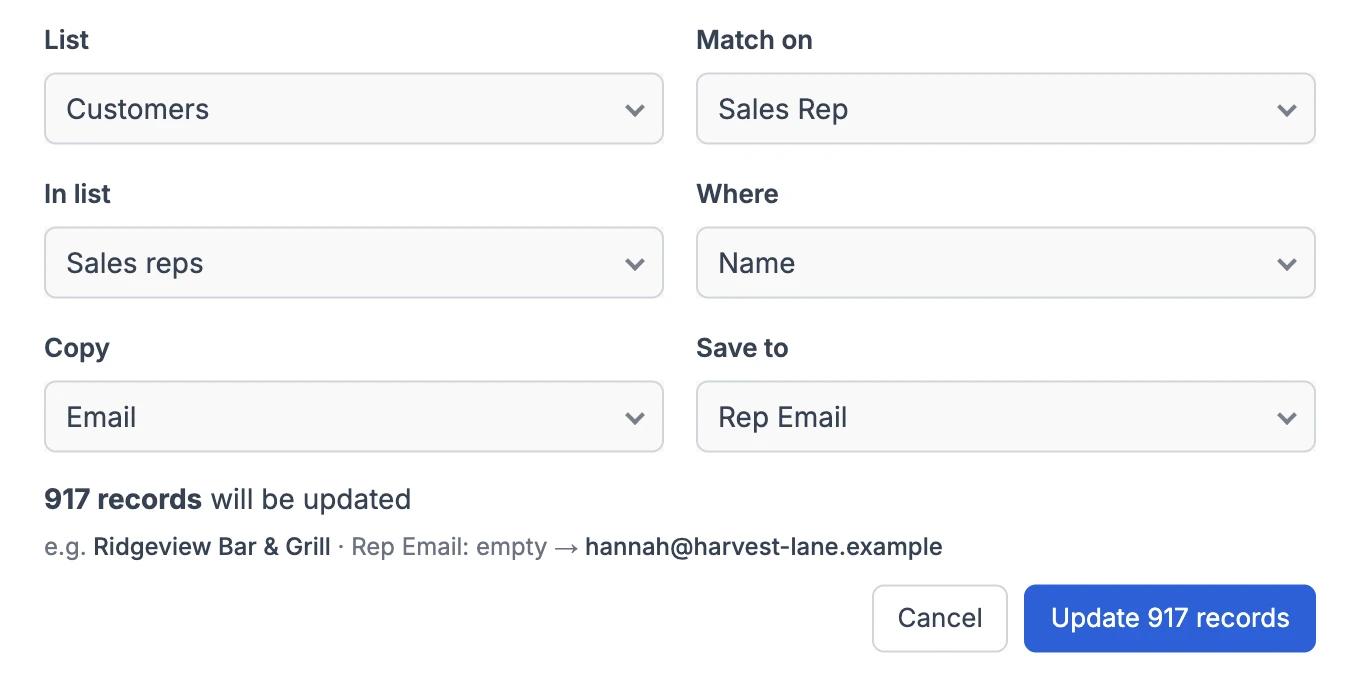
Look up a value from another list
Match a field to a field in another list and copy one of its values, like a VLOOKUP. Here, every customer gets its sales rep's email by matching on the rep's name.
Bulk Actions in GeoMaps
Some fields are tedious to fill by hand: how far each account is from the office, which rep's territory it falls in, its county, the nearest store. Bulk actions fill them for a whole list in one go. Open the main menu, choose Bulk actions, pick what to calculate, the list and the field to save it in.
Before anything is saved, GeoMaps shows how many records will be updated, how many already have the right value and an example of the new value. You confirm once, the update runs in the background and you can close the window while it works.
The values are saved like any edit you make in GeoMaps: to the record on the map and, for CRMs with two-way sync and Google Sheets, to the record in your CRM or sheet. Each run shows up in the data source's Logs, and you can undo a run for 7 days.
Need the territories first? See Auto-create Territories →
It's part of GeoMaps' tools tools, so it works hand in hand with the rest of your map.
Where bulk actions helps
Territories in your CRM
Save each account's territory name to a CRM field, so reports, views and assignments in your CRM use the same territories as your map.
Nearest store or rep
Give every customer the name of its nearest store, depot or rep and the distance to it, to route leads or plan visits.
Fill in missing data
Add the county or ZIP code from each pin's location, or copy a rep's email onto their accounts by matching on the rep's name.
Bulk Actions FAQ
- Which data sources can be updated?
- Lists from CRMs that support editing in GeoMaps, Google Sheets, and uploaded CSV or Excel files. For CRMs and sheets, the new values are saved there too.
- Do I need to create the field first?
- Yes. Add the field in your CRM or sheet (for example "Distance to HQ"), refresh the data source in GeoMaps, and it shows up as a field you can fill.
- Will it overwrite values I already have?
- Only records whose value changes are updated, and the preview shows how many that is before you confirm. If a run did something you didn't want, undo it within 7 days. Records edited since the run keep their newer values.
- Are distances straight-line or driving?
- Straight-line (as the crow flies), in miles or kilometers.