
What team & permissions does
- One shared workspace: lists, territories and layers are the same for everyone
- Roles: owner, admins and members
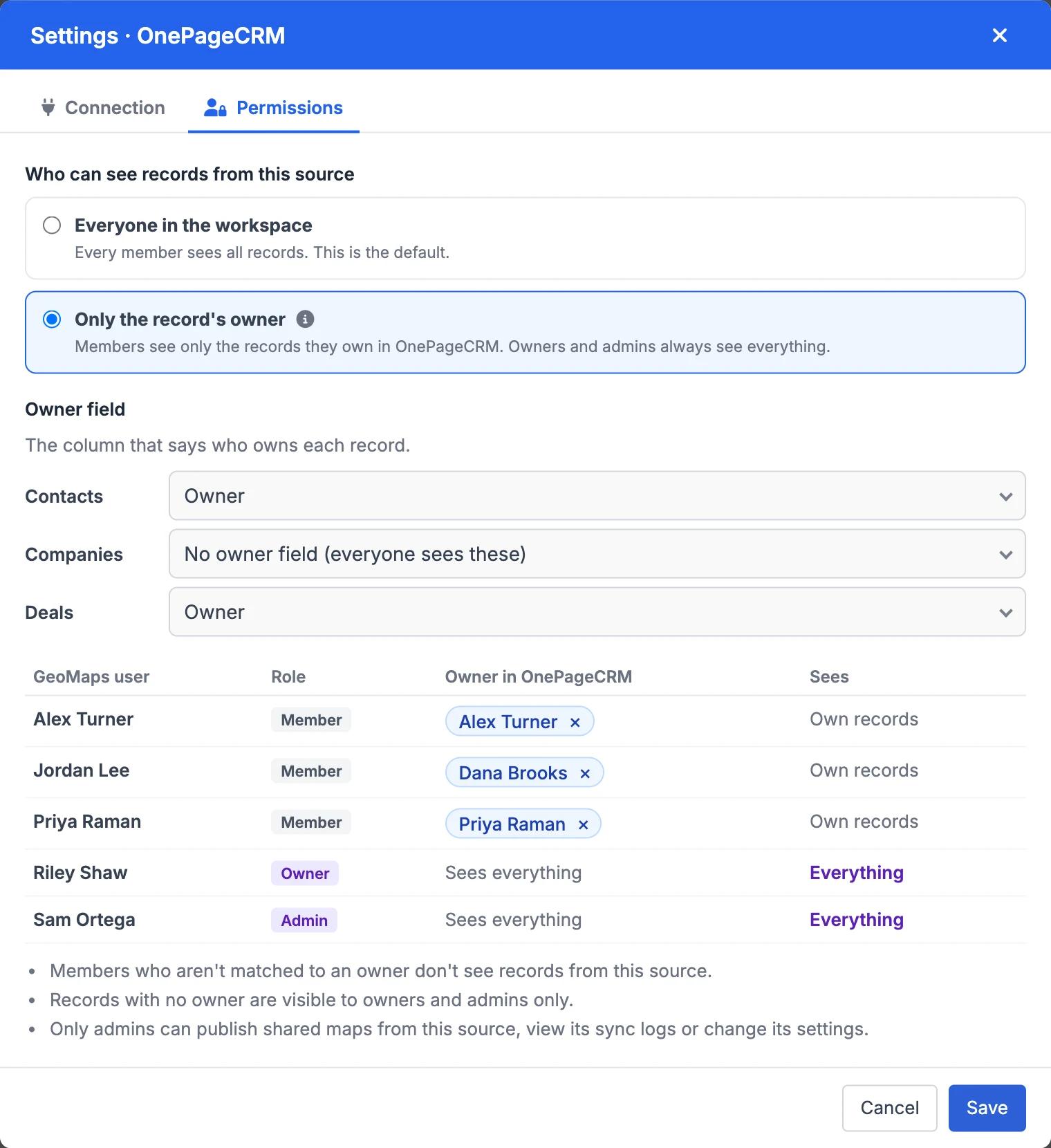
- Members can be limited to the records they own in your CRM
- Owners and admins always see every record
- Teammates are matched to CRM users by email or name, with manual overrides
- Applies everywhere: map, table, exports and the mobile app
- Off by default and set per data source
- Team seats: 1 on Free, 5 on Pro, unlimited on Enterprise
What a member sees
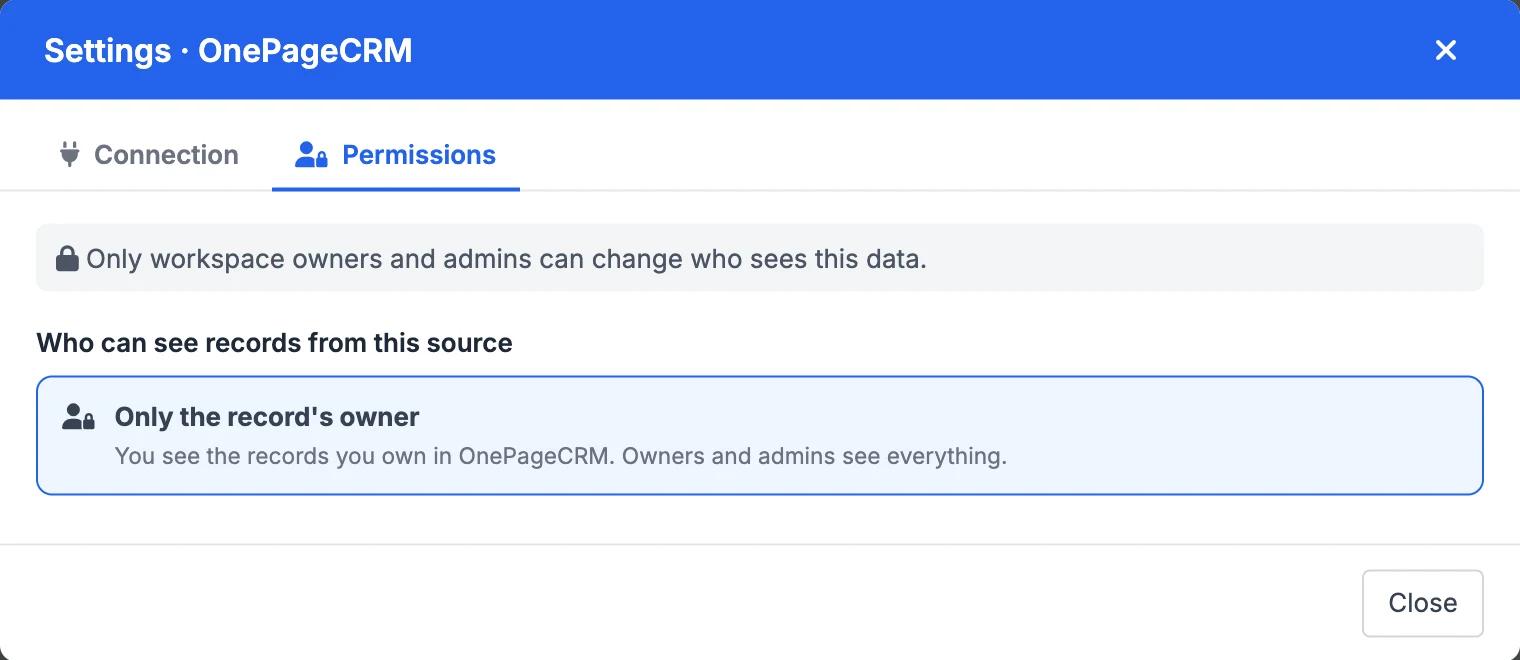
Members see that the source is limited to the records they own. Only workspace owners and admins can change who sees the data.
Team & Permissions in GeoMaps
A GeoMaps workspace is shared by everyone you invite. Lists, territories and other layers belong to the workspace rather than the person who made them, so the whole team works from the same map. Each teammate gets a role: the owner and admins manage the workspace, its data sources and billing, and members use the map day to day.
When reps should only see their own accounts, turn on Permissions for a data source: open Data Sources, choose the source, click Settings and pick "Only the record's owner". Choose which field holds the owner for each object, and GeoMaps matches every teammate to their user in the CRM, by email where the CRM shares it, otherwise by name. You can change any match by hand.
Once it's on, members see only the records they own: on the map, in the table and lists, in exports and in the mobile app. Owners and admins still see everything. It's off by default, so nothing changes until an admin switches it on, and you can switch back to "Everyone in the workspace" at any time.
Want the step-by-step setup? Read the help guide →
It's part of GeoMaps' teams & permissions tools, so it works hand in hand with the rest of your map.
Where team & permissions helps
Field sales teams
Each rep opens the map and sees only their own accounts, while the sales manager sees the whole team's book.
Shared territory planning
Managers draw or auto-create territories once and the whole team sees the same boundaries, without passing files around.
Growing teams
Invite new reps as members and they start with the shared lists, layers and routes, limited to their own records if you want.
Team & Permissions FAQ
- Who can change permissions?
- Only the workspace owner and admins can turn Permissions on, choose the owner fields and change how teammates are matched to CRM users.
- What does a member see when Permissions is on?
- For objects with an owner field, only the records they own in the CRM: records owned by someone else or by no one are hidden from them. Objects you leave without an owner field stay visible to everyone, and owners and admins always see everything.
- How are teammates matched to CRM users?
- By email where the CRM provides it, otherwise by name. An admin can review every match and pick a different CRM owner, or several, for anyone.
- How many people can I invite?
- Free has 1 user, Pro includes 5 and Enterprise has unlimited users. Pending invitations count toward the limit.