
Managing who sees your data
Let each teammate see only the records they own in your CRM.
By default, everyone in your workspace sees every record from every data source. If your reps should only see their own accounts, switch a data source to owner-based permissions: members then see only the records they own in your CRM, while owners and admins keep seeing everything.
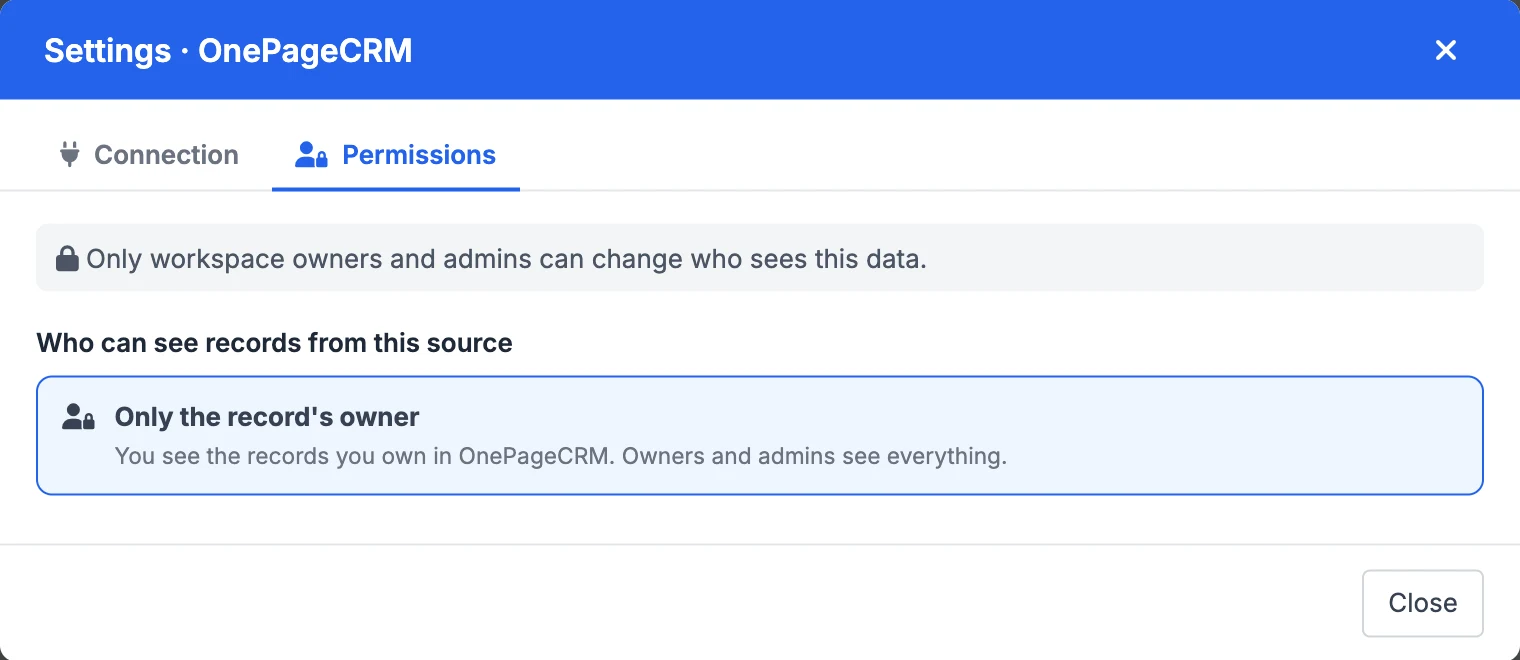
Only workspace owners and admins can change permissions. Members can see which setting is on, but can't change it.
1. Open the data source's settings
Open the menu in the top-right corner of the map and choose Data Sources. Pick the data source, then click Settings at the bottom.
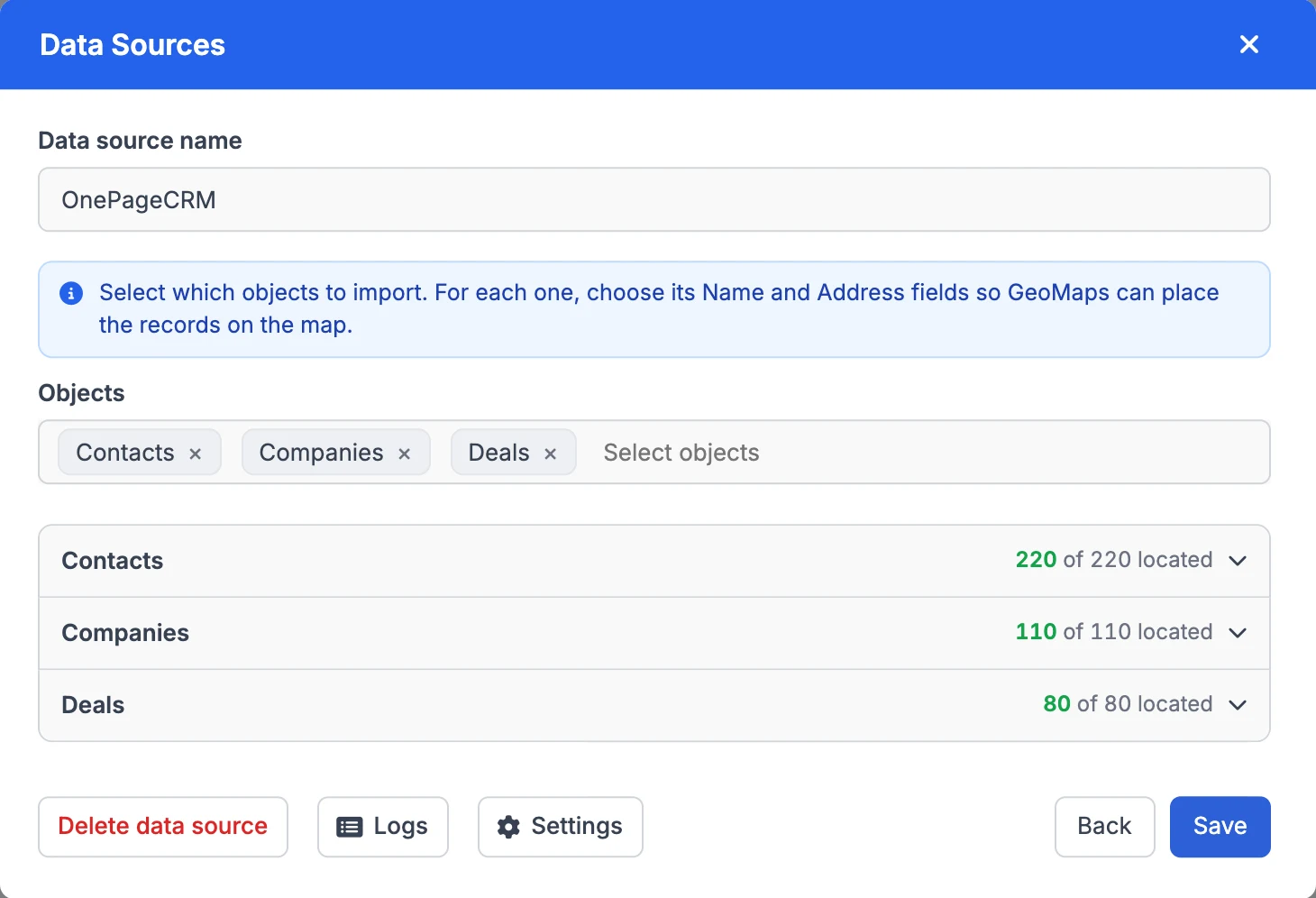
Switch to the Permissions tab. Every data source starts on Everyone in the workspace.
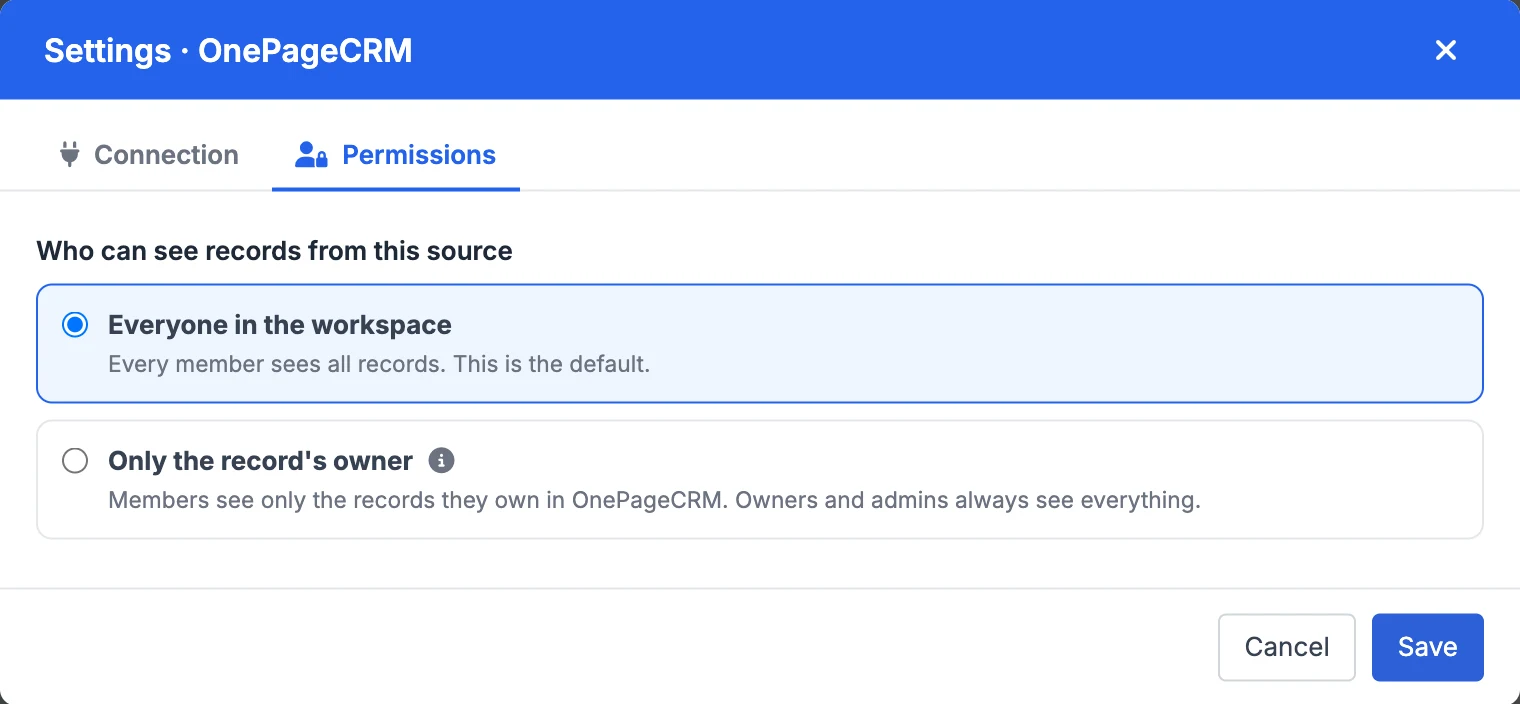
2. Choose "Only the record's owner"
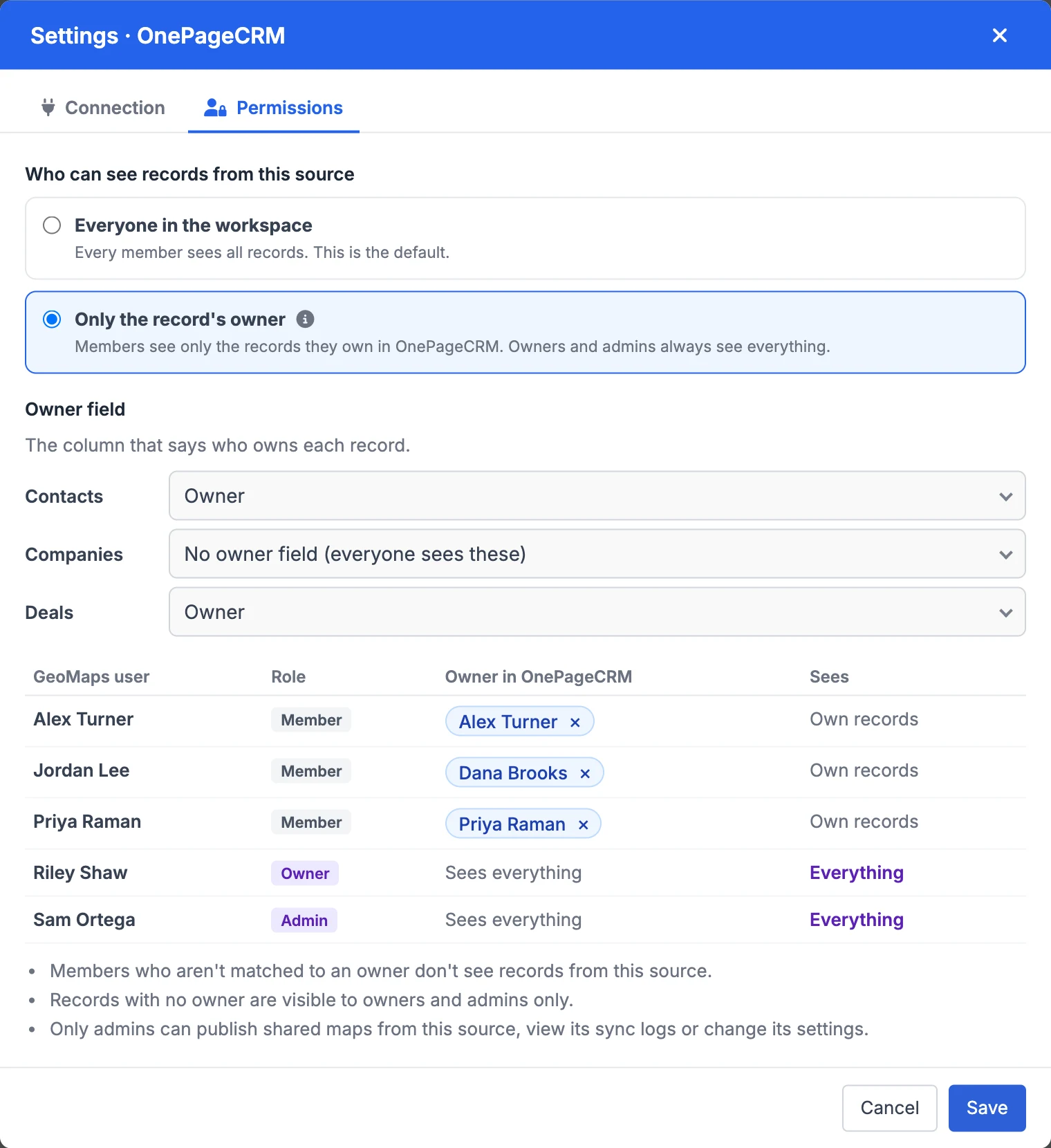
Select Only the record's owner. Two more sections appear: the owner field, and who owns what.
3. Pick the owner field
For each object, choose the column that says who owns a record. GeoMaps picks it for you when your CRM has one, such as Owner in OnePageCRM or Assigned user in LeadConnector.
Choose No owner field for objects everyone should see, such as Companies. Their records stay visible to the whole team.
4. Check each person's owner
The table lists everyone in your workspace with their CRM owner and what they'll see. GeoMaps matches people to CRM owners automatically, using the email in your CRM first and then the exact name.
To change a match, remove the owner with the × and pick another one from the list. Each CRM owner belongs to one person: picking an owner someone else has moves it to the new person. If a CRM owner isn't assigned to anyone, a yellow note lists them and how many records they own. Only admins see those records until you assign them.
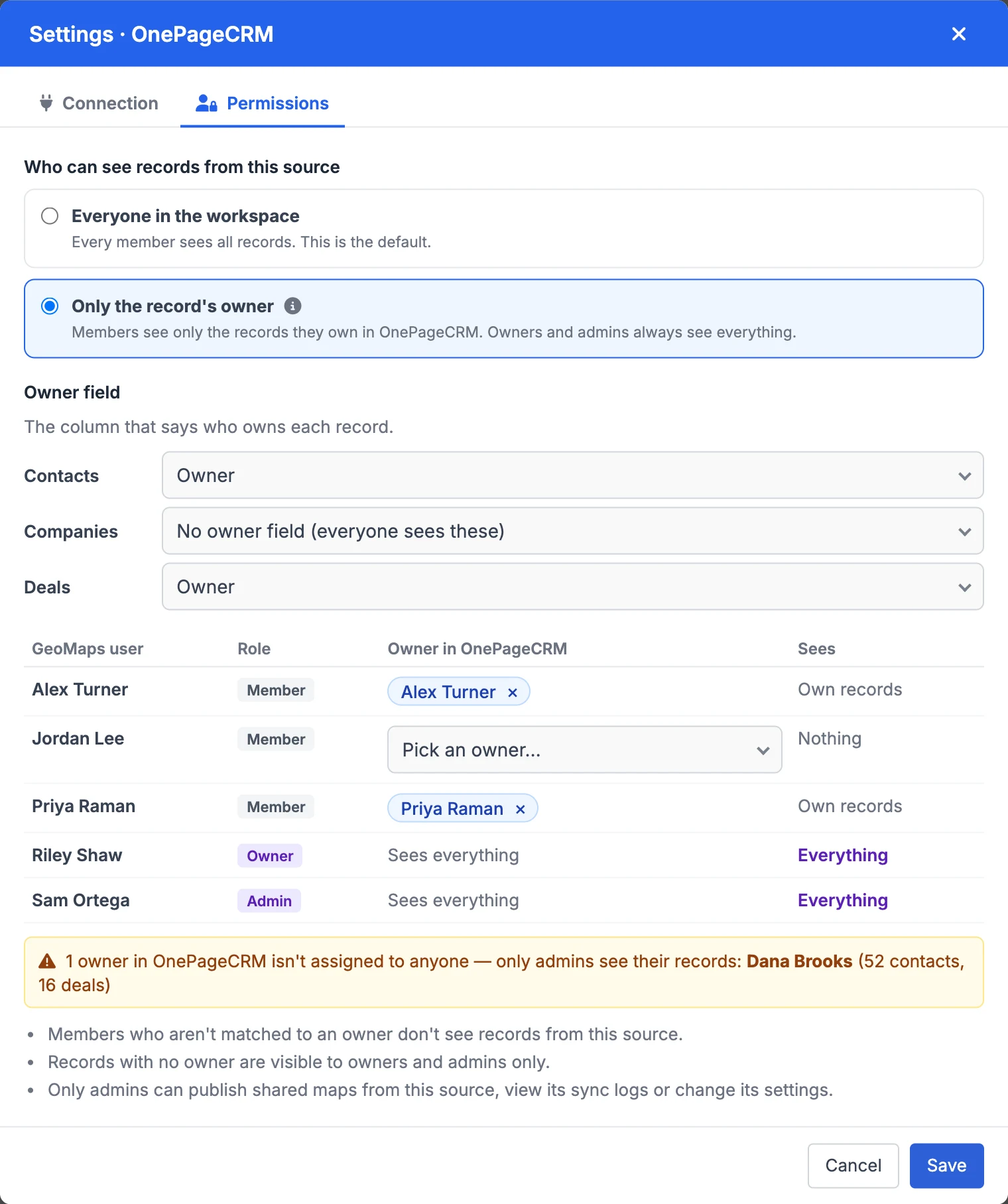
Click Save. Members see the change the next time their map loads.
What members see
Members see only their own records everywhere in GeoMaps: on the map, in the table, in filters, counts and exports, and in the mobile app. In the data source's settings, they see the current setting without being able to change it.
Good to know
- Members without an owner don't see any records from that data source.
- Records with no owner are visible to owners and admins only.
- Only owners and admins can publish a shared map from a restricted data source, view its sync logs, or edit or delete it.
- Members can't add new records to a restricted object from GeoMaps.
- Works with spreadsheets and databases too: choose the column that holds each rep's name or email, such as "Sales rep".
- You can switch back to Everyone in the workspace at any time. Nothing is deleted, and your owner matches are kept.
Still need help? Contact our team.