
Upload a CSV file
Upload a CSV file and have it on the map in seconds.

Turn a CSV file into an interactive map in seconds. GeoMaps detects your address columns and plots every row.
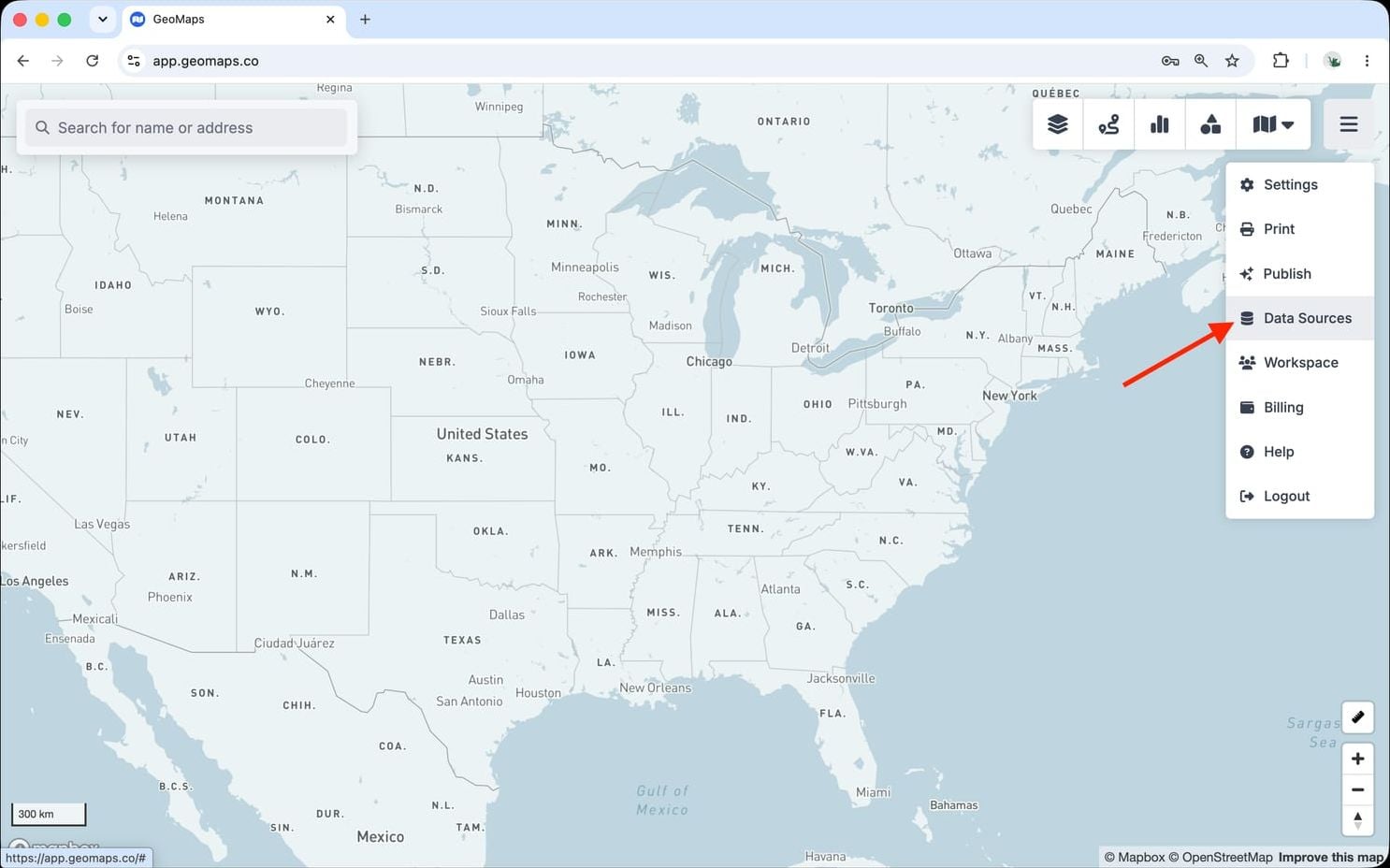
1. Open Data Sources
In GeoMaps, open the menu in the top-right corner of the map and choose Data Sources. Add a new source and select CSV to open its connection form.
2. Connect CSV
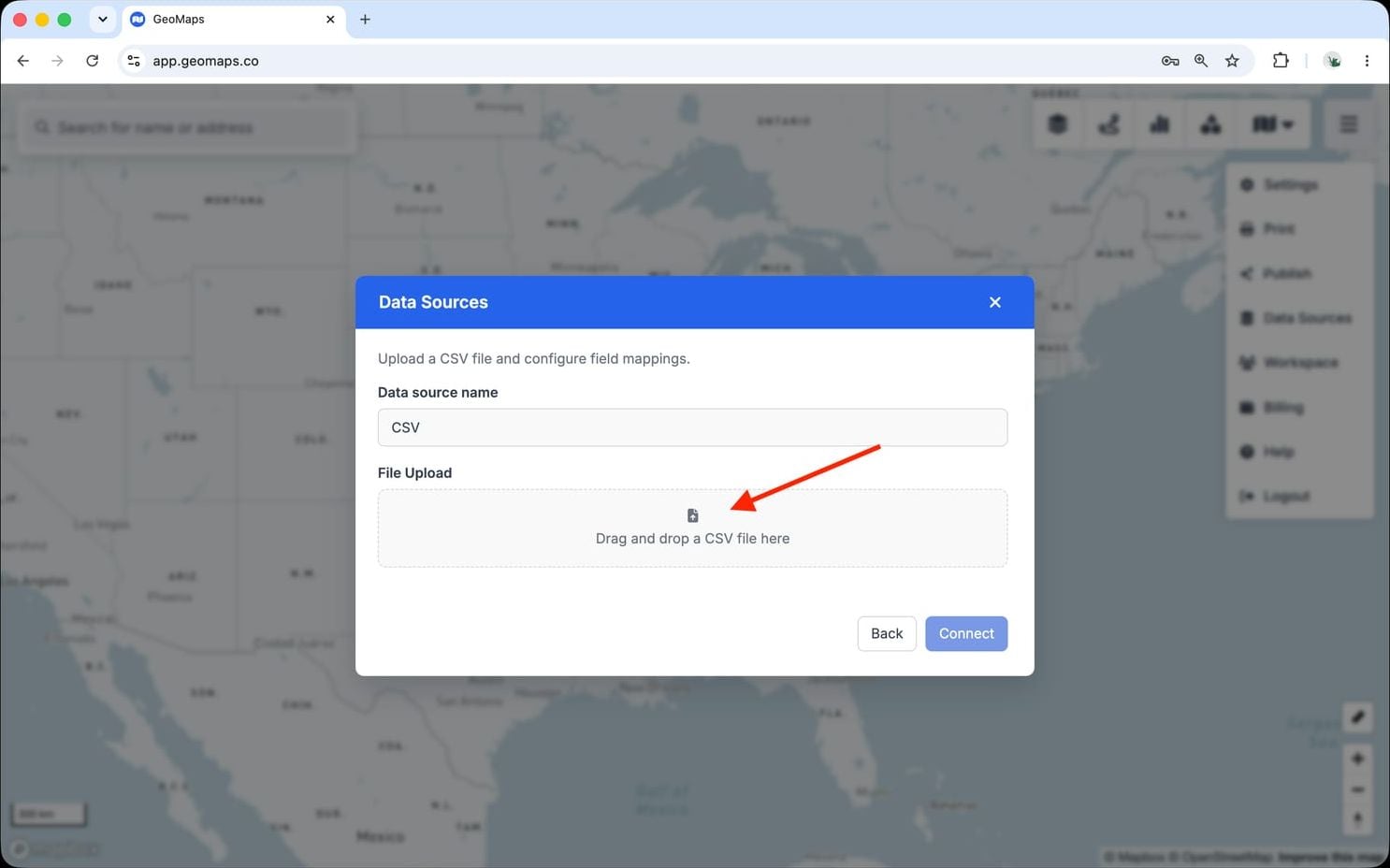
No account or keys to connect — you just upload the file.
- Drag your .csv file onto the upload box, or click to browse for it.
- GeoMaps reads the rows and detects the address (or latitude/longitude) columns automatically.
A CSV exported from any tool works — there's nothing to reformat first.
3. Map your file
Confirm which columns hold the address — GeoMaps usually detects them — and pick which fields to show in the marker popup, then import. To update later, re-upload the file or switch to a live connection.
Still need help? Contact our team.