
Upload an Excel file
Upload a Excel file and have it on the map in seconds.

Turn a Excel file into an interactive map in seconds. GeoMaps detects your address columns and plots every row.
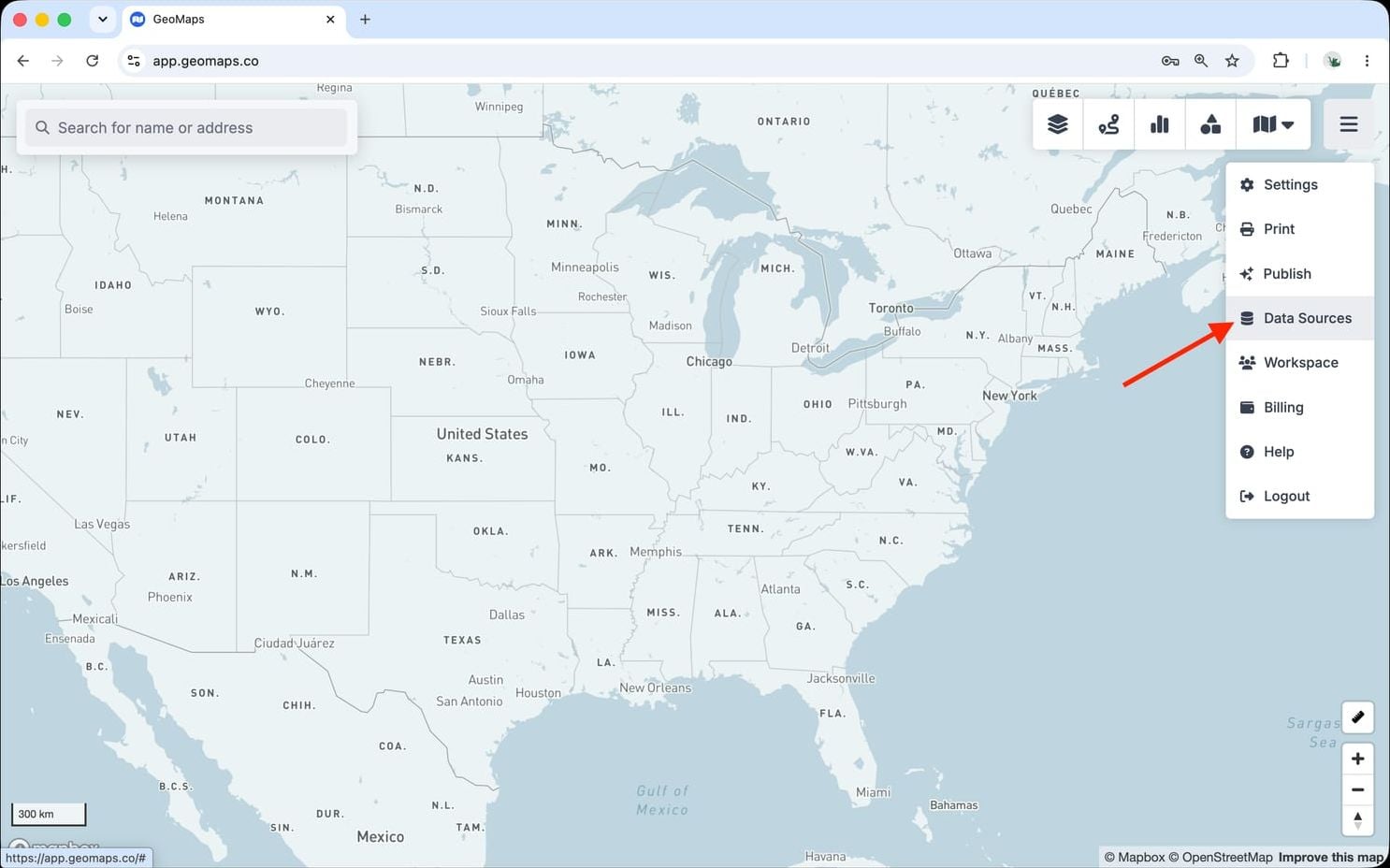
1. Open Data Sources
In GeoMaps, open the menu in the top-right corner of the map and choose Data Sources. Add a new source and select Excel to open its connection form.
2. Connect Excel
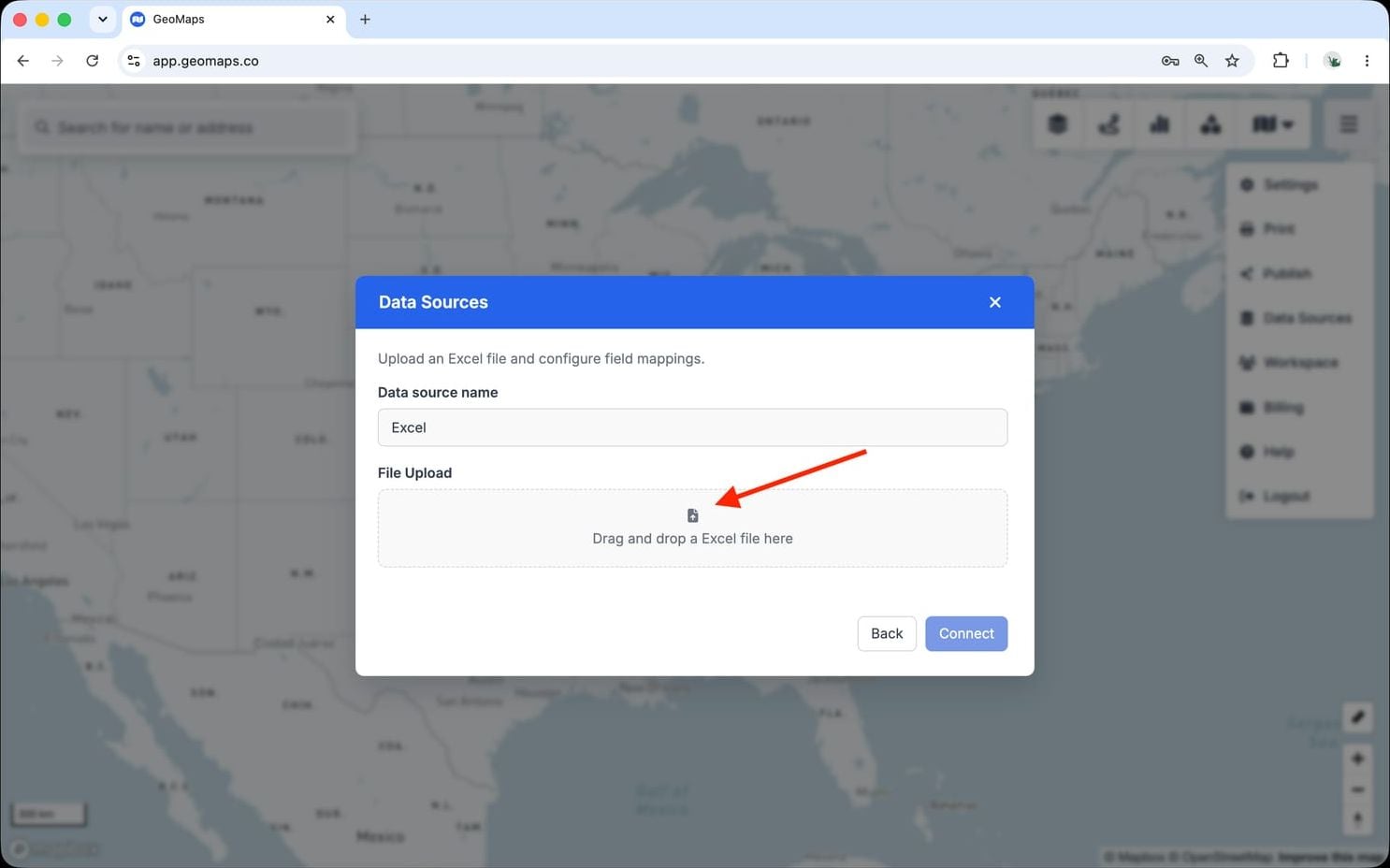
Excel workbooks upload the same way as a CSV — no add-ins required.
- Drag your .xlsx workbook onto the upload box, or click to browse.
- GeoMaps reads the first sheet's rows and finds the address columns for you.
Column headers are detected automatically, so you don't need to rearrange anything.
3. Map your file
Confirm which columns hold the address — GeoMaps usually detects them — and pick which fields to show in the marker popup, then import. To update later, re-upload the file or switch to a live connection.
Still need help? Contact our team.