
What color-coded map does
- One list per value of a field, each in its own color
- Keeps the original list's icon, marker size, popup fields and filters
- Preview the new lists and their record counts before you split
- Works with text, picklist and linked-record fields (shown by name, not ID)
- Records with no value get their own "(No value)" list
- Up to 50 values, with an extra check before creating 25 or more lists
- Colors are picked to stand apart from the lists already on your map
- New lists stay in sync with your CRM or spreadsheet
See the lists before they're created
Pick a field and the preview shows each new list, its color and how many records it will hold. Fields that can't be split, like dates or IDs, aren't in the picker.
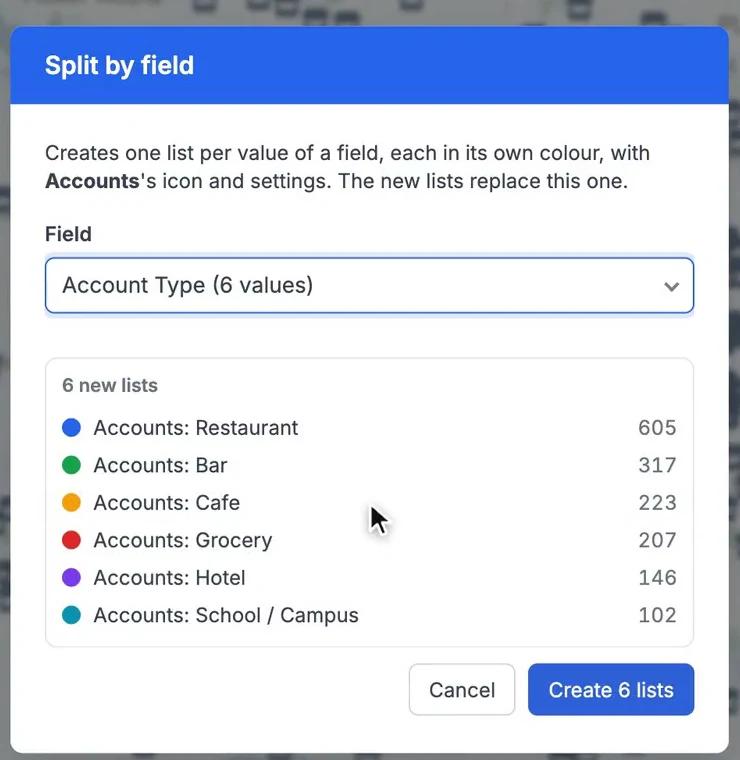
Color-coded Map in GeoMaps
A map where every pin is the same color tells you where your records are, but not what they are. Split by field turns one list into several: open a list's ⋮ menu, choose Split by field, pick a field and GeoMaps creates one list for each of its values, each in its own color.
Before anything changes, a preview shows every new list with its color and how many records it will hold. The new lists keep the original's icon, marker size, popup fields and filters, and each one adds a single filter for its value. Records with no value go into a "(No value)" list, so nothing drops off the map.
Because the new lists are ordinary filtered lists, they stay up to date as your CRM or spreadsheet syncs: a record whose value changes moves to the matching list on its own. You can rename, recolor or hide any of them, just like any other list.
Want to change icons and sizes too? See Customized Markers →
It's part of GeoMaps' visualization tools, so it works hand in hand with the rest of your map.
Where color-coded map helps
Accounts by type
Show restaurants, bars, cafes and hotels in different colors to see which areas lean towards which kind of customer.
Territories by rep
Split accounts by sales rep to see each rep's patch at a glance, and spot accounts sitting in someone else's area.
Pipeline by stage
Color deals or jobs by status to see where open, won and lost work sits, then turn off the stages you don't need.
Color-coded Map FAQ
- Which fields can I split by?
- Text, picklist and linked-record fields with one value per record and between 2 and 50 different values. Dates, numbers, yes/no fields, long notes, ID columns and fields that hold several values per record aren't offered, because they don't make useful color groups.
- What happens to the original list?
- The new lists replace it. If a dashboard widget or a shared map uses the original list, GeoMaps keeps it and just hides it, so nothing that depends on it breaks.
- Will new records from my CRM land in the right list?
- Yes. Each new list is a filter on the same data, so records that arrive or change in a sync appear in the list that matches their value. If a brand-new value appears later, duplicate one of the lists and change its filter to that value.
- Can I change the colors afterwards?
- Yes. Every new list is a normal list, so you can change its color, icon, name or filters at any time.