
Connect Teamleader Focus
Connect Teamleader and put your records on the map.

Put your Teamleader accounts, contacts and deals on the map so reps can see what's nearby and managers can see coverage at a glance.
1. Open Data Sources
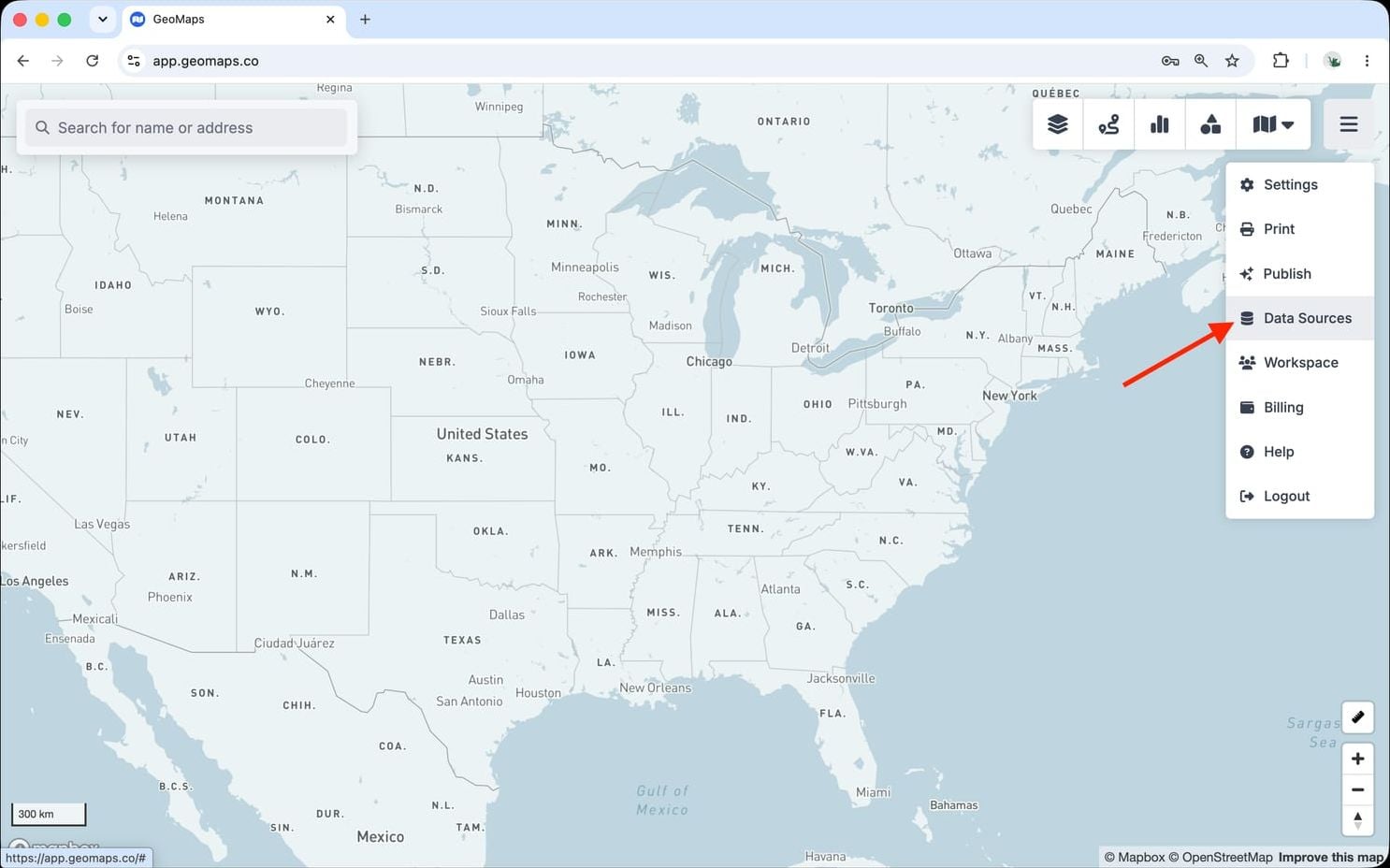
In GeoMaps, open the menu in the top-right corner of the map and choose Data Sources. Add a new source and select Teamleader to open its connection form.
2. Connect Teamleader
Teamleader Focus connects with a secure sign-in — no API key needed.
- Click Connect Teamleader and sign in to your Teamleader account.
- Approve the access GeoMaps asks for.
- Choose the objects to import — Companies, Contacts and Deals.
Companies and Contacts are placed at their primary address. Deals are placed at their customer company's location automatically. For deals sold to a person, switch the Deals address field to the Contact's address.
3. Choose what to map
Pick the object(s) you want to plot and confirm which field holds the address (GeoMaps suggests one for you). Every record is geocoded and dropped on the map, then kept in sync on a schedule as your data changes.
Good to know
- Two-way sync: click the pencil next to a field in a marker popup to change it. The edit is saved in Teamleader too and shows up in the data source's Logs. You can also move a deal to another phase or mark it won or lost.
- New records: right-click the map and choose Add marker to add a company or contact to Teamleader. Deals can't be created from GeoMaps.
- Sync: GeoMaps re-reads Teamleader automatically — every 10 minutes for most accounts, less often for very large ones.
- Owners: to let each rep see only their own records, choose Account manager (companies) or Responsible user (deals) as the owner field. See Managing who sees your data. Contacts have no owner in Teamleader.
Troubleshooting
- "You signed in to a different Teamleader account than this source uses": sign in to the original account, or add the other account as a new data source.
- "Your Teamleader sign-in expired": start the connection again from Data Sources.
- Reconnecting: open Data Sources, pick the Teamleader source, click Connection and then Reconnect, and sign in again. Your lists, filters and styling are kept.
Disconnect Teamleader
Open Data Sources, pick the Teamleader source and click Delete data source. Its lists are removed from GeoMaps; nothing is deleted in Teamleader. To revoke access in Teamleader too, uninstall GeoMaps from your Teamleader integrations.
Still need help? Contact our team.