
Connect Salesflare
Connect Salesflare and put your records on the map.

Put your Salesflare accounts, contacts and deals on the map so reps can see what's nearby and managers can see coverage at a glance.
1. Open Data Sources
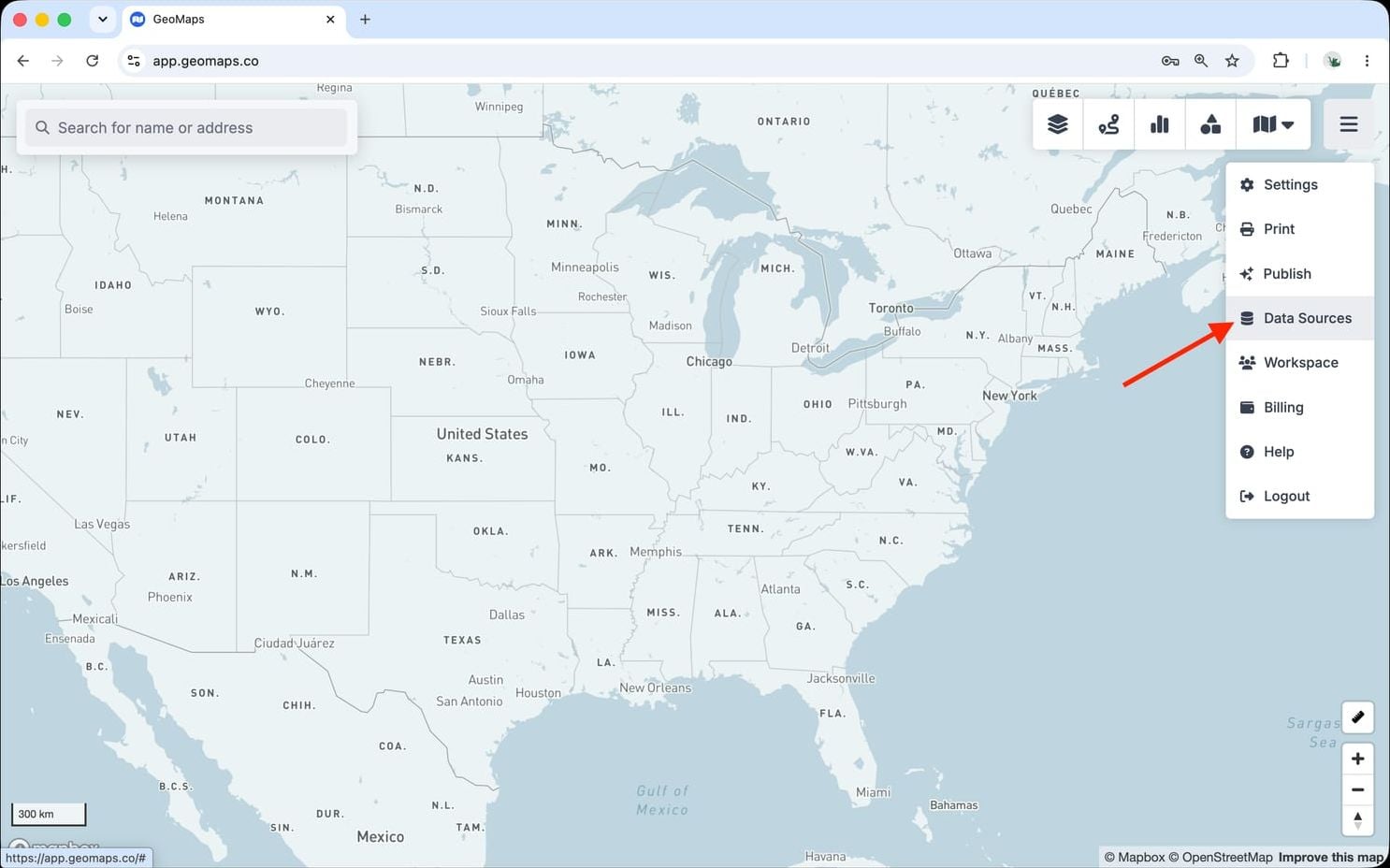
In GeoMaps, open the menu in the top-right corner of the map and choose Data Sources. Add a new source and select Salesflare to open its connection form.
2. Connect Salesflare
Salesflare connects with an API key.
- In Salesflare, open Settings → API keys and click the orange + button to create a key.
- Paste it into the API Key field in GeoMaps, then connect.
- Choose the objects to import — Accounts, Contacts and Opportunities.
Accounts and Contacts are placed at their own address; for contacts without one, switch the Contacts address field to the Account's address. Opportunities have no address in Salesflare, so they're placed at their Account's location automatically.
3. Choose what to map
Pick the object(s) you want to plot and confirm which field holds the address (GeoMaps suggests one for you). Every record is geocoded and dropped on the map, then kept in sync on a schedule as your data changes.
Good to know
- Two-way sync: click the pencil next to a field in a marker popup to change it. The edit is saved in Salesflare too and shows up in the data source's Logs.
- New records: right-click the map and choose Add marker to add an account or contact to Salesflare.
- Sync: GeoMaps re-reads Salesflare about every 30 minutes, so changes made there reach the map on their own.
- Archived contacts aren't imported. A contact you archive disappears from the map at the next sync.
- Owners: to let each rep see only their own records, choose Owner as the owner field. See Managing who sees your data.
Troubleshooting
- "Could not connect to Salesflare. Check the API key.": the key was mistyped or has been deleted. Create a new one in Settings → API keys.
- "This API key belongs to a different Salesflare account": a data source stays tied to the Salesflare account it was created with. Use a key from that account, or add the other account as a new data source.
- Replacing the key: open Data Sources, pick the Salesflare source, click Connection, paste the new key and click Reconnect.
Disconnect Salesflare
Open Data Sources, pick the Salesflare source and click Delete data source. Its lists are removed from GeoMaps; nothing is deleted in Salesflare. To revoke access completely, also delete the key in Salesflare under Settings → API keys.
Still need help? Contact our team.