
Connect Microsoft Lists
Map your Microsoft Lists data and keep it in sync automatically.

Map your Microsoft Lists data on an interactive map and keep it in sync — no reformatting and no manual exports.
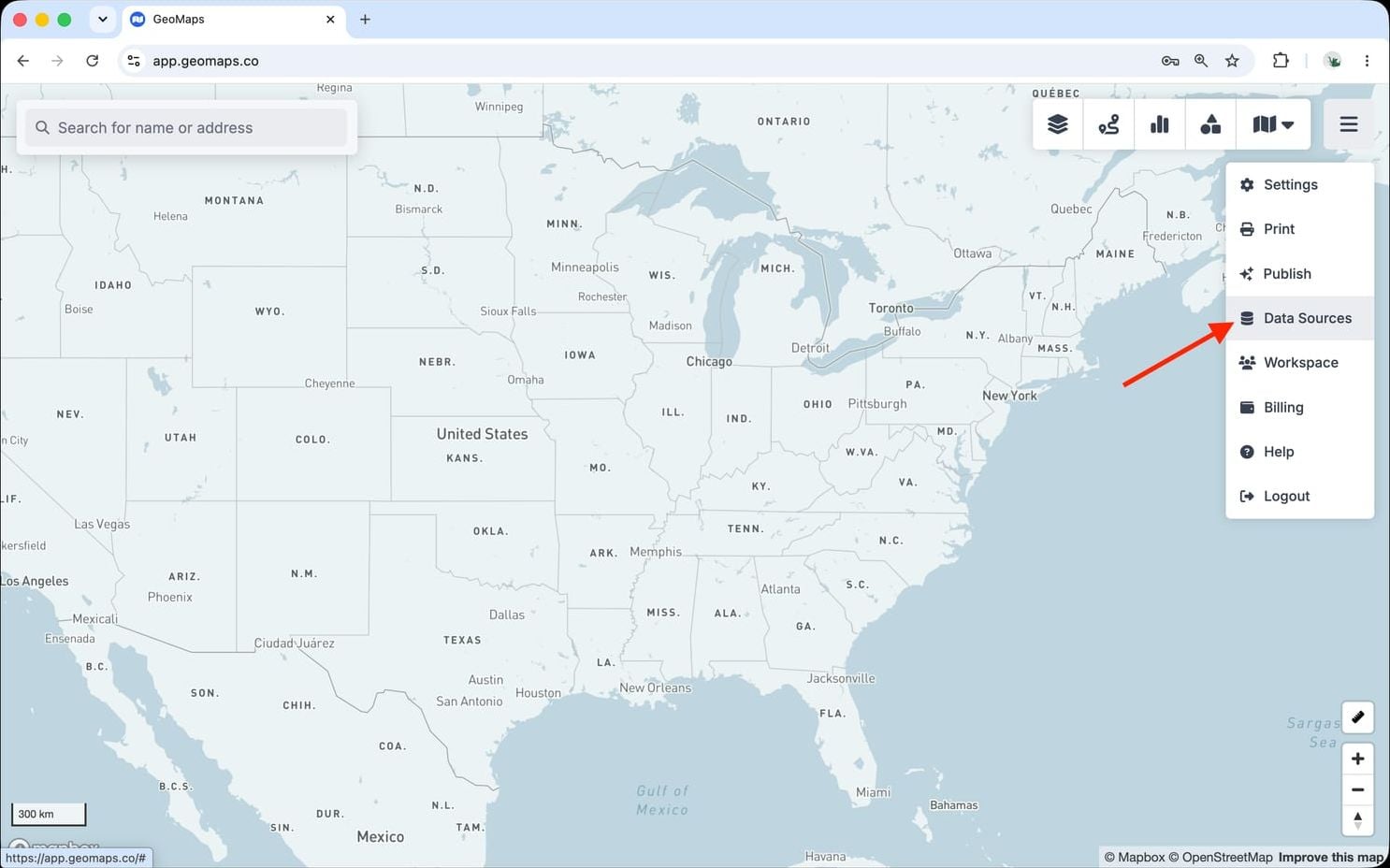
1. Open Data Sources
In GeoMaps, open the menu in the top-right corner of the map and choose Data Sources. Add a new source and select Microsoft Lists to open its connection form.
2. Connect Microsoft Lists
Microsoft Lists connects with a secure Microsoft sign-in — no keys to copy. It works with Microsoft 365 work or school accounts; personal Microsoft accounts aren't supported.
- Click Connect Microsoft Lists and sign in with your Microsoft 365 account.
- Approve the access GeoMaps asks for. Some organizations require a Microsoft 365 admin to approve GeoMaps first.
- Pick the lists to import, from your organization's SharePoint sites and your own My lists.
A list with a Location or Geolocation column is placed by its coordinates, with no geocoding. Otherwise GeoMaps uses the list's address columns (for example Address, City, State and ZIP).
3. Choose what to map
Confirm the address (or Location) column for each list — GeoMaps suggests one for you — and pick the fields to show in the marker popup. Every item is placed on the map and kept in sync on a schedule as the list changes.
Good to know
- GeoMaps only reads your lists. Edit items in Microsoft Lists and they reach the map at the next sync.
- Sync: GeoMaps re-reads your lists automatically — every 10 minutes for most lists, less often for very large ones.
- GeoMaps sees the items the person who connected can see. Items inside folders in a list aren't imported.
- Owners: GeoMaps adds an Owner field from the list's first Person column (or, without one, the item's creator). To let each teammate see only their own items, choose it as the owner field. See Managing who sees your data.
Troubleshooting
- "Your organization requires a Microsoft 365 admin to approve GeoMaps": ask your Microsoft 365 admin to grant consent for GeoMaps, then connect again.
- "You signed in to a different Microsoft 365 organization than this source uses": sign in with an account from that organization, or add the other one as a new data source.
- Reconnecting: open Data Sources, pick the Microsoft Lists source, click Connection and then Reconnect, and sign in again. Your lists, filters and styling are kept.
Disconnect Microsoft Lists
Open Data Sources, pick the Microsoft Lists source and click Delete data source. Its lists are removed from GeoMaps; nothing is deleted in Microsoft Lists or SharePoint.
Still need help? Contact our team.