
Connect Lofty
Connect Lofty and put your records on the map.

Put your Lofty leads and transactions on the map to focus farming and follow-ups on the neighborhoods that matter.
1. Open Data Sources
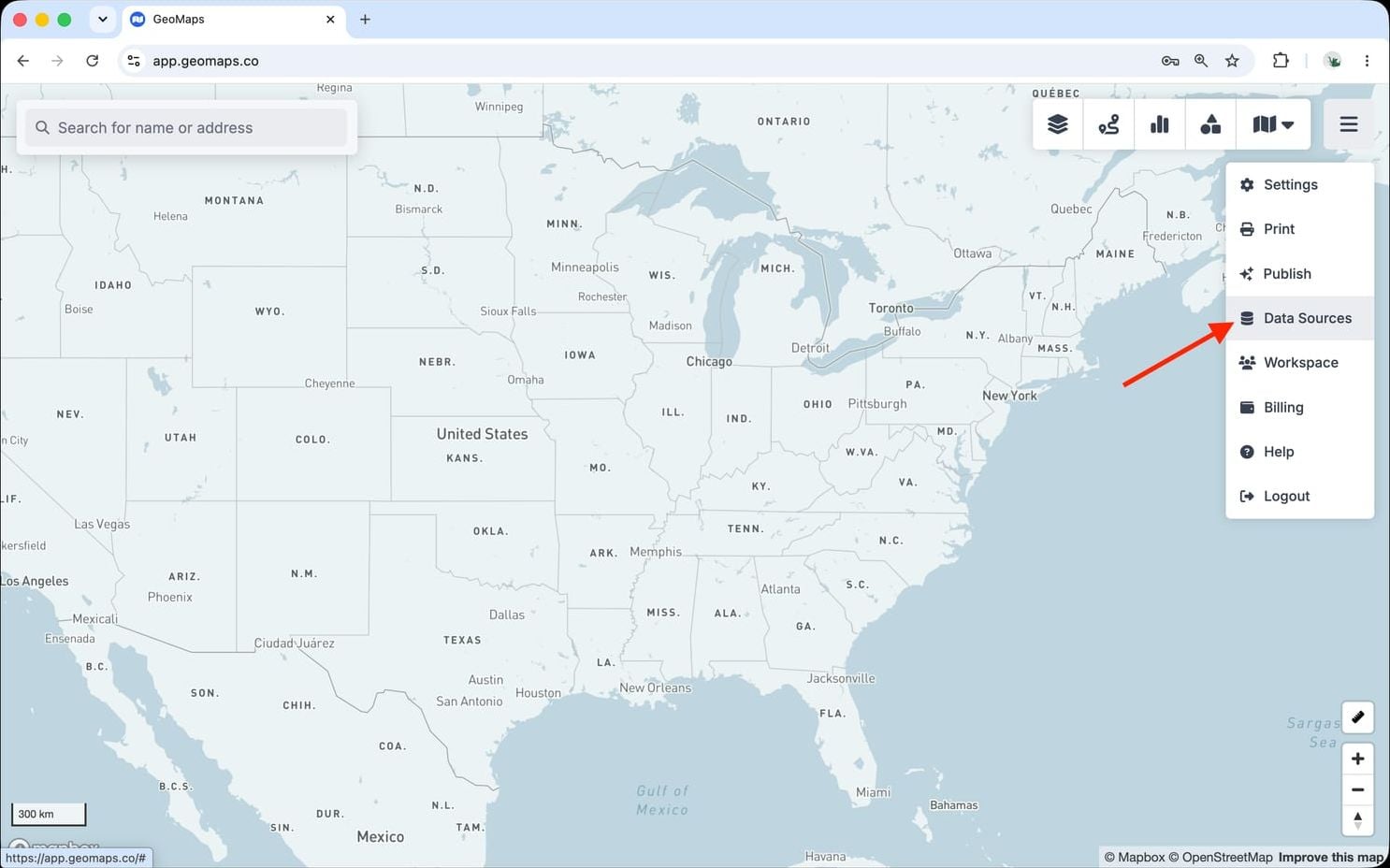
In GeoMaps, open the menu in the top-right corner of the map and choose Data Sources. Add a new source and select Lofty to open its connection form.
2. Connect Lofty
Lofty connects with a secure sign-in — no keys to copy.
- Click Connect Lofty and sign in. Use a Company Owner or Admin login to include every agent's leads.
- Approve the access GeoMaps asks for.
- Choose the objects to import — Leads and Transactions.
Leads are placed at their property address, or their mailing address when there's no property. Transactions are placed at their property address; switch their address field to the Lead's address to use the lead's location instead.
3. Choose what to map
Pick the object(s) you want to plot and confirm which field holds the address (GeoMaps suggests one for you). Every record is geocoded and dropped on the map, then kept in sync on a schedule as your data changes.
Good to know
- GeoMaps only reads your Lofty data. Make changes in Lofty and they reach the map at the next sync.
- Sync: GeoMaps re-reads Lofty automatically — every 10 minutes for most accounts, less often for very large ones.
- GeoMaps sees what the Lofty user who connected can see. Hidden leads are visible only to their assigned agent in Lofty, so even an Owner or Admin connection doesn't include other agents' hidden leads.
- Owners: to let each agent see only their own records, choose Assigned agent (leads) or Agent (transactions) as the owner field. See Managing who sees your data.
Troubleshooting
- Some agents' leads are missing: reconnect with a Company Owner or Admin login.
- "You signed in to a different Lofty account than this source uses": sign in to that account, or add the other one as a new data source.
- Reconnecting: open Data Sources, pick the Lofty source, click Connection and then Reconnect, and sign in again. Your lists, filters and styling are kept.
Disconnect Lofty
Open Data Sources, pick the Lofty source and click Delete data source. Its lists are removed from GeoMaps; nothing is deleted in Lofty. You can also disconnect GeoMaps from your Lofty account.
Still need help? Contact our team.