
Connect Quickbase
Plot rows straight from your Quickbase database.
Plot data straight from your Quickbase database — connect once and GeoMaps keeps the map current.
1. Open Data Sources
In GeoMaps, open the menu in the top-right corner of the map and choose Data Sources. Add a new source and select Quickbase to open its connection form.
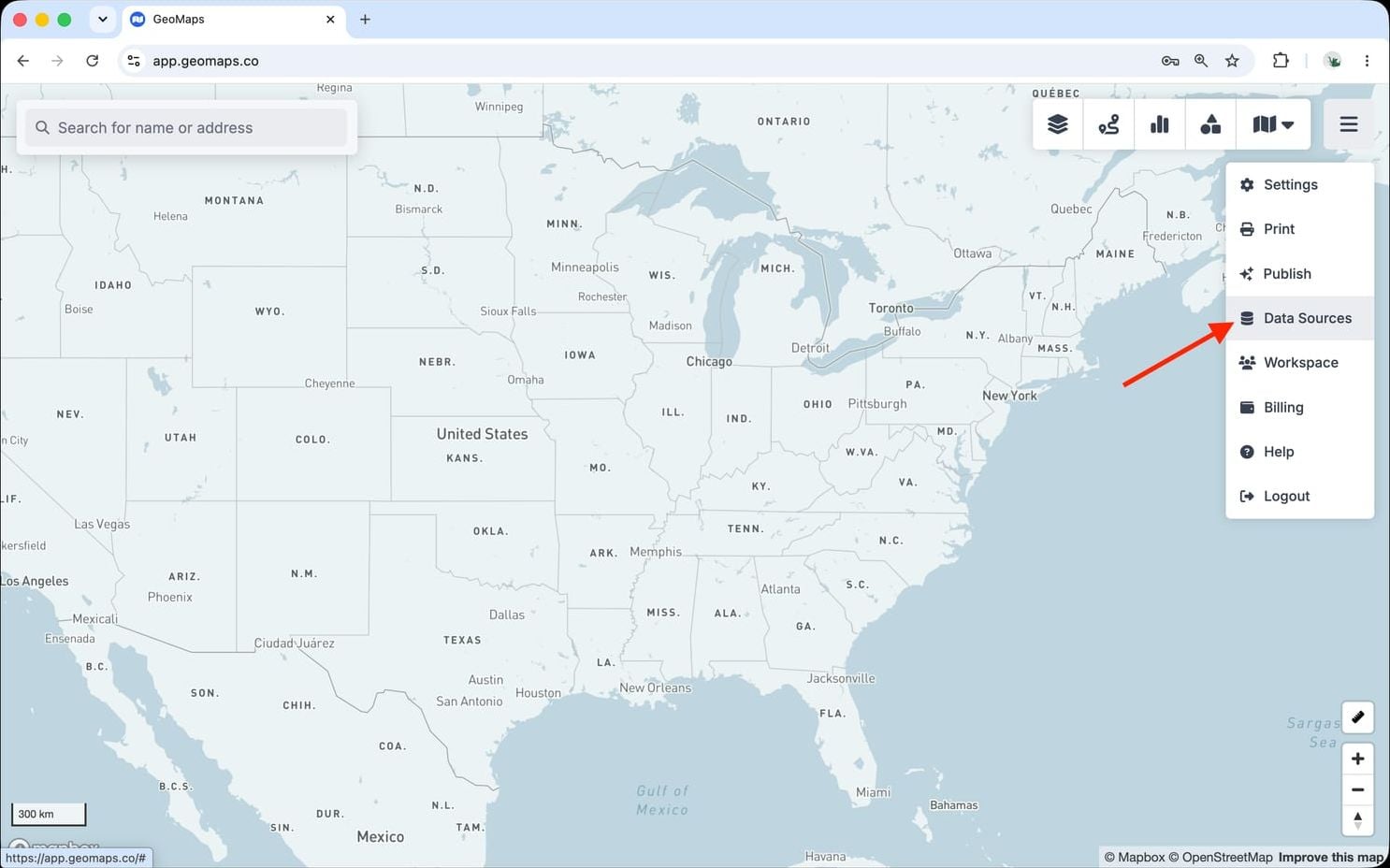
2. Connect Quickbase
Quickbase connects with your app URL and a user token (not an application token).
- In Quickbase, open your avatar → My Preferences → Manage my user tokens, create a token, and assign it to your app.
- In GeoMaps, paste your app URL (e.g. https://yourrealm.quickbase.com/nav/app/<appId>) and the user token, then connect.
GeoMaps loads the tables in your app for you to pick from. A user token is required — an application token won't authenticate.
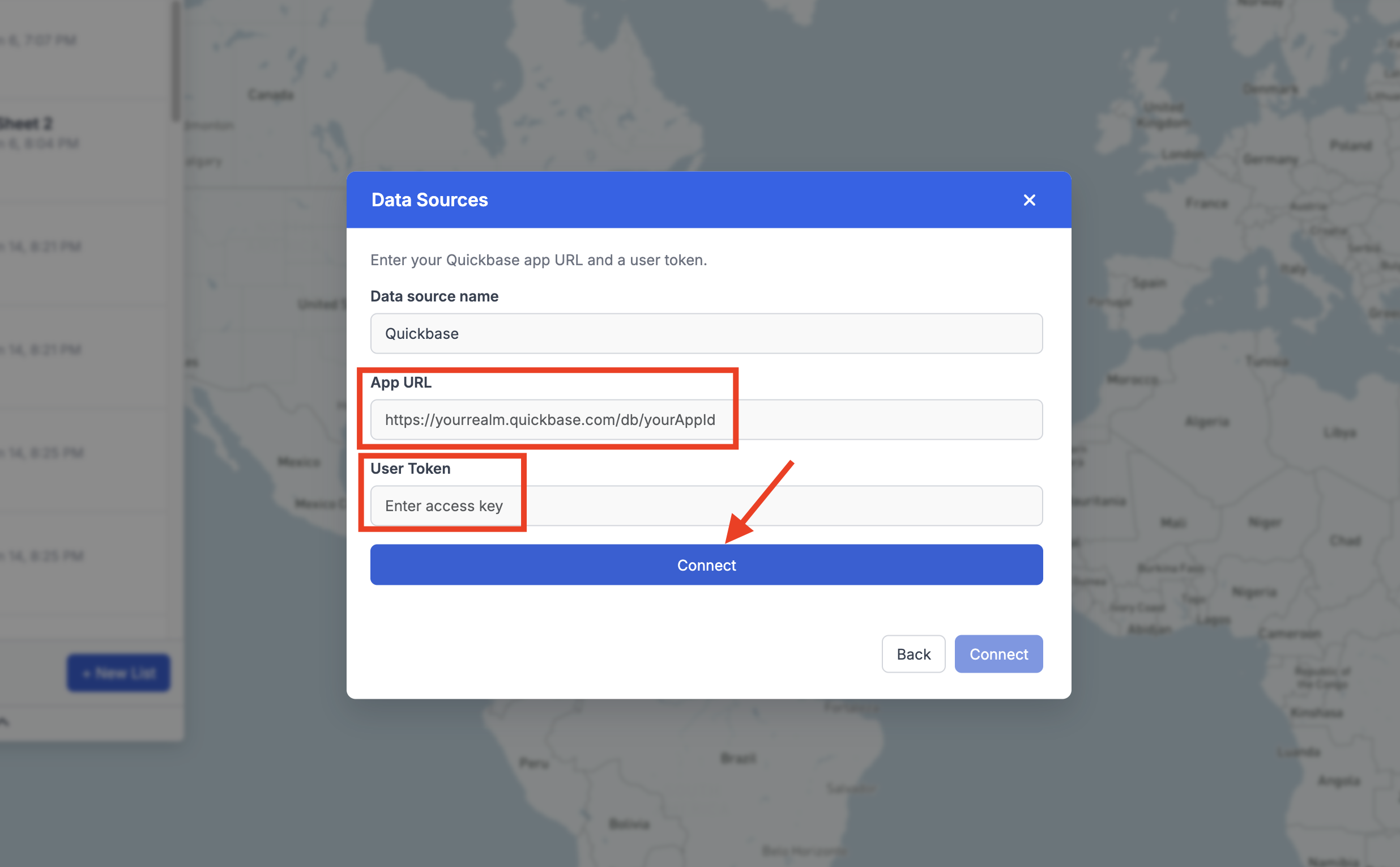
3. Choose a table
Pick the table or view to map and confirm the location column (a full address, or latitude/longitude). GeoMaps geocodes the rows and refreshes them on a schedule.
Still need help? Contact our team.