
Map settings
Projection, weather, map opacity, parcel lines, and your own Mapbox style.
Map settings change how the map itself looks: its projection, weather, how strong the base map is, and whether parcel lines show. You can also use your own Mapbox style as the base map. Map settings are saved in your browser.
Open Map settings
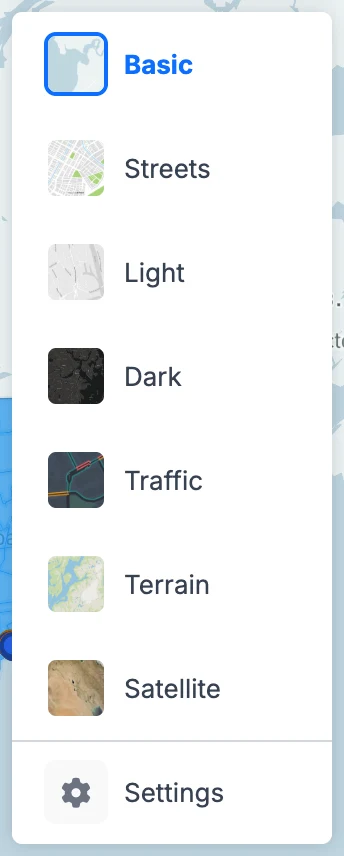
Click the map tiles button at the top right, then Settings at the bottom of the list.
What you can change
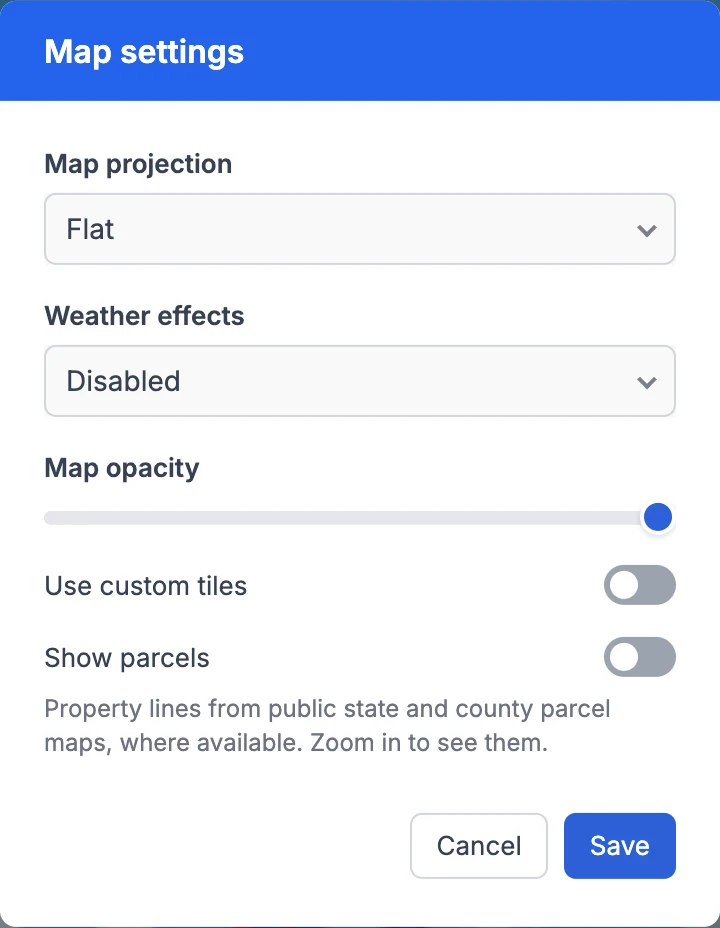
- Map projection: Flat or Globe.
- Weather effects: live weather radar and rain on the map (flat projection only).
- Map opacity: fade the base map so your markers and layers stand out.
- Show parcels: property lines from public state and county parcel maps, where available. Zoom in to street level and click a parcel for its details.
Click Save to apply.
Use your own Mapbox style
If you design maps in Mapbox Studio, you can use one as the base map:
- In Mapbox, copy a public token (it starts with pk.) from account.mapbox.com → Tokens. Never paste a secret token (sk.).
- In Map settings, turn on Use custom tiles and paste the token.
- Pick a Style: one of Mapbox's styles, or Another style URL… for your own. In Mapbox Studio, open your style, then Share → Style URL (it looks like mapbox://styles/your-account/style-id).
- GeoMaps checks that the token works and that the style loads. Then Save turns on.
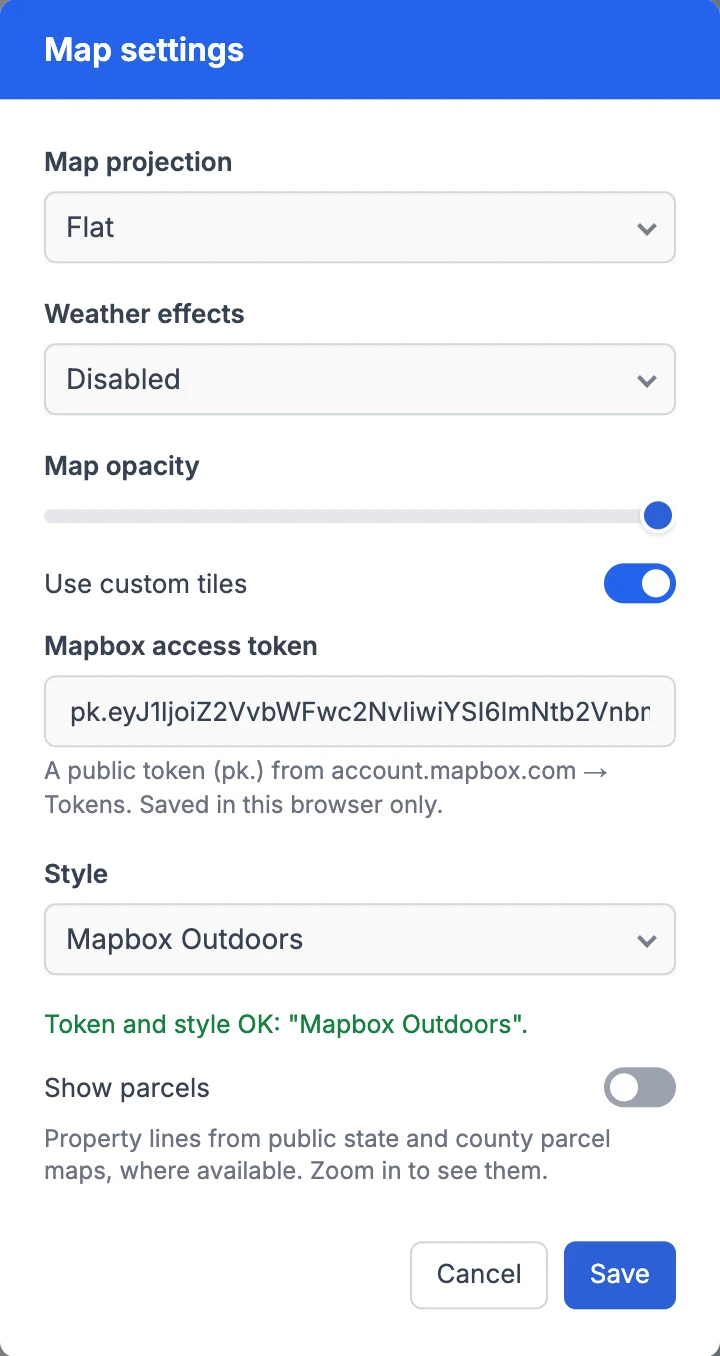
A Custom entry then appears in the map tiles list, so you can switch between your style and the GeoMaps ones any time. To stop using it, turn Use custom tiles off.
Good to know
- Custom tiles are saved in this browser only. Teammates add their own.
- Shared maps and route PDFs always use the GeoMaps map styles.
- A private style needs a token from the Mapbox account that owns it.
- Miles or kilometers is set in the main Settings (top-right menu → Settings → Distance unit). The first time you use GeoMaps, it's chosen from your browser's language.
Still need help? Contact our team.