
How to Put Multiple Locations on One Map (2026 Guide)
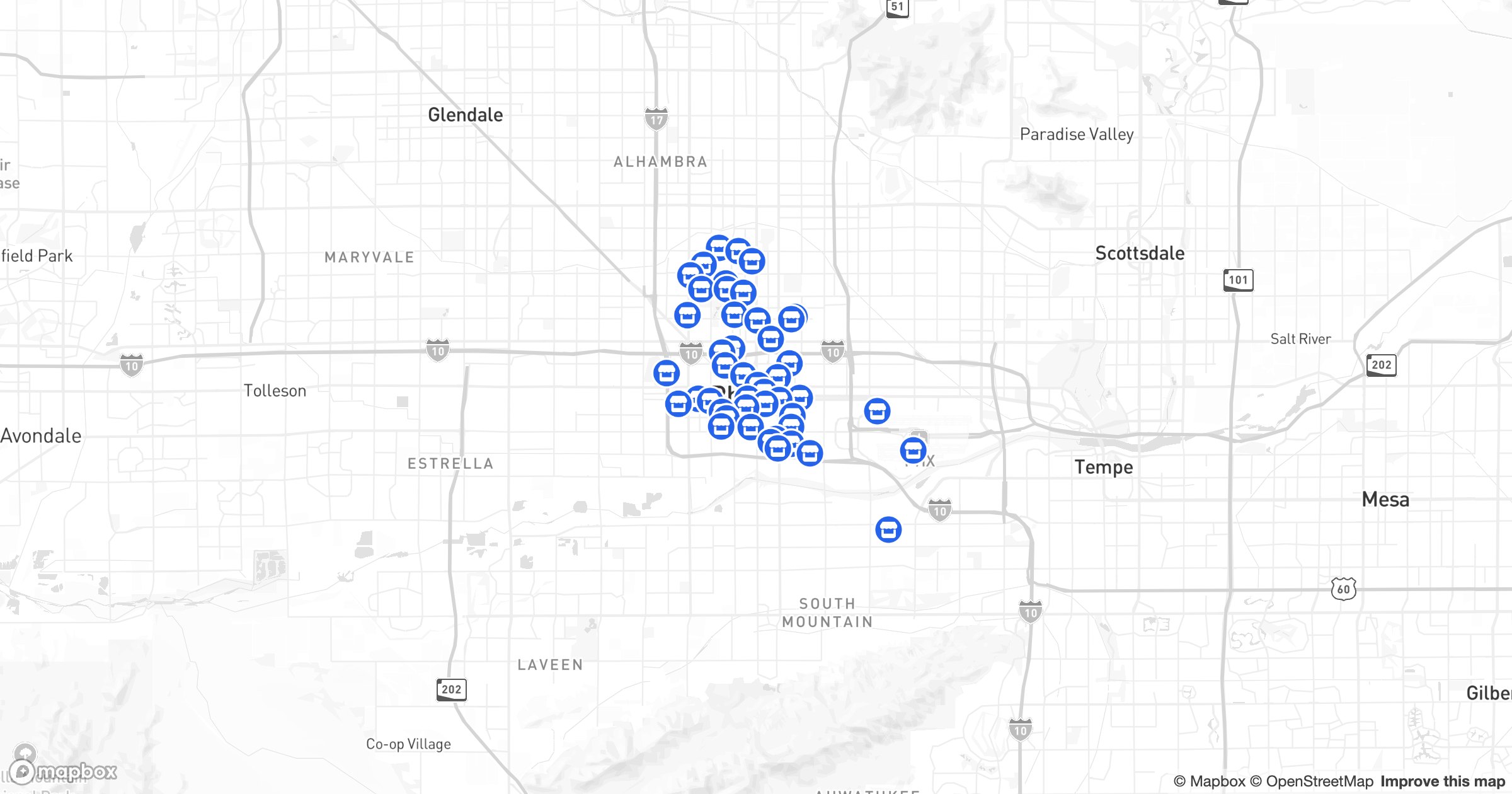
Whether it's store locations, customers, event venues or job sites, putting multiple locations on one map makes patterns obvious that a list hides. This guide covers the fastest ways to map many addresses at once — free and paid — and how to pick based on how many points you have and what you'll do with them.
Three ways to map multiple locations
- Google My Maps — free, simple, best for a few hundred pins
- Paste-and-map tools — fast public maps from a pasted spreadsheet
- A dedicated mapping platform — scales, color-codes, syncs and shares
Option 1: Google My Maps (free)
Best for a small, static set of places.
- Open Google My Maps and create a map
- Search each place and click Add to map, or Import a spreadsheet to add many at once
- Style pins by color or icon, then share a link
It's free and easy, but caps out around a couple thousand points per layer, won't sync with your data, and offers little styling or analysis. See our step-by-step My Maps guide.
Option 2: Paste-and-map tools
If you just need a quick public map from a spreadsheet, paste-based tools like BatchGeo return one in seconds. The catch: updating means re-pasting, and there's no live data connection or deeper analysis.
Option 3: A dedicated mapping platform (recommended)
When you have more than a handful of locations — or you'll keep adding to them — a purpose-built platform is the right call. With GeoMaps you can:
- Import from Excel, Google Sheets, a CRM or a database, with live sync
- Plot tens of thousands of locations and keep them readable with clustering
- Color-code by category, filter by any field, and search instantly
- Add territories, radius and drive-time areas, and routes
- Share a public link, embed the map, or password-protect it
- Start free, up to 1,000 locations
How to choose
- A handful of places, one time → Google My Maps
- A quick public map from a sheet → a paste-and-map tool
- Many locations, color-coding, or data that changes → GeoMaps
Tips for a clean multi-location map
- Color-code by a category so types separate at a glance
- Cluster dense areas so the map doesn't turn into a blob
- Add a search box and filters if viewers need to find their own location
- Switch to a heatmap when you care about concentration, not individual pins
The more locations you map, the more the tool matters. A free pin map is perfect for a short list; once it's hundreds or thousands — or the data keeps changing — a platform that scales and syncs saves you from rebuilding the map every week.