
How to Create a Google My Maps Map (Step-by-Step)
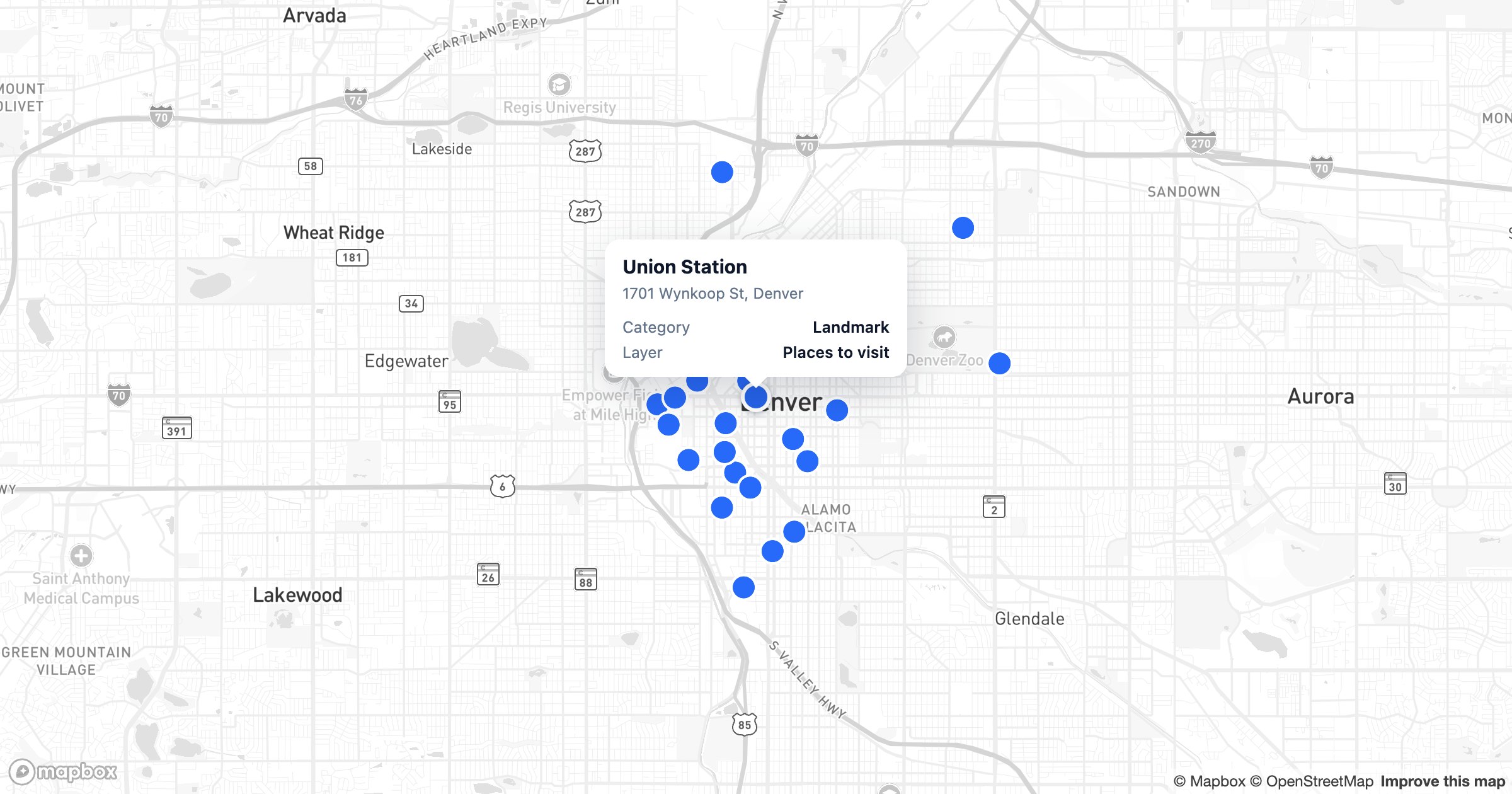
Google My Maps is the quickest free way to build a custom map with your own pins, lines and shapes. This guide walks through creating one from scratch, importing a spreadsheet of locations, styling it, and sharing it — then covers where My Maps stops being enough and what to do next.
What you can build with Google My Maps
- A map of multiple locations (stores, customers, event spots)
- Up to 10 layers and roughly 2,000 points per layer
- Custom pins, colors and icons, plus drawn lines and shapes
- A shareable link or an embed for your website
Step 1: Open Google My Maps and create a map
Go to google.com/mymaps and sign in with your Google account, then click Create a new map. You'll land in the editor with the map on the right and a layers panel on the left. Name the map by clicking "Untitled map."
Step 2: Add your first locations
Search for a place in the top bar and click Add to map, or use the marker tool to drop a pin manually. Each pin can carry a title, description, photo and a custom color or icon. Repeat for each location — or jump to Step 3 to add many at once.
Step 3: Import a spreadsheet of addresses
To map many places at once, click Import inside a layer and upload a CSV, Google Sheet or Excel file. Choose the column that holds the address (or latitude/longitude), then the column to use as each pin's title. My Maps geocodes the addresses and drops a pin for each row.
Step 4: Style your pins
Click a layer, then Uniform style to color all pins the same, or Style by data column to color them by a category in your data. Use Individual styles to set a pin's icon and color one by one. Thoughtful color-coding is what turns a wall of identical pins into a readable map.
Step 5: Draw lines, shapes and directions
Use the toolbar under the search bar to draw a line, outline an area, or add simple driving directions between points. These are handy for rough territories, delivery zones or a quick route.
Step 6: Share or embed your map
Click Share to choose who can view it — anyone with the link, or specific people. To put it on a website, open the menu (three dots) and choose Embed on my site for an iframe snippet.
When to graduate beyond Google My Maps
My Maps is excellent for small, static maps. You'll feel the ceiling when you need to:
- Map more than a couple thousand points, or keep them readable with clustering
- Keep the map in sync with a spreadsheet, CRM or database automatically
- Use heatmaps, data-driven colors, territories or drive-time areas
- Plan optimized multi-stop routes
- Make the map look like your brand, not a generic My Maps
When that happens, a tool like GeoMaps imports the same data and removes the limits. See our Google My Maps alternatives guide or the GeoMaps vs Google My Maps comparison.