
How to Map Data From a Spreadsheet (Excel & Google Sheets)
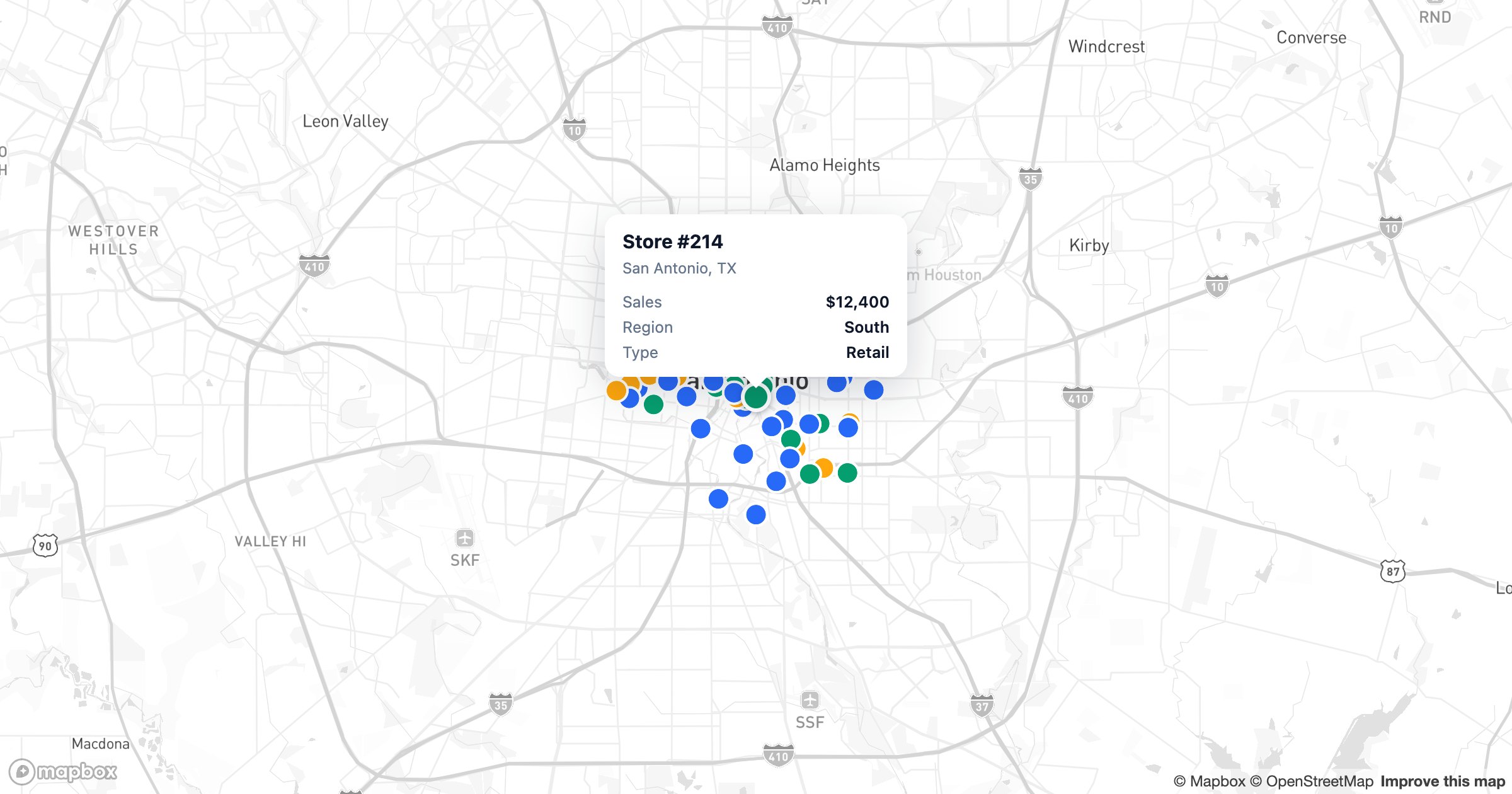
If your addresses live in a spreadsheet, you're one step away from a map. Mapping spreadsheet data — geocoding each row and plotting it — turns a list into something you can see: clusters, gaps, territories and routes. Here's how to do it from Excel or Google Sheets, from quick-and-free to fully scalable.
Prepare your spreadsheet first
A clean sheet maps cleanly. Before you start:
- Put each location on its own row
- Use clear column headers (Name, Address, City, State, ZIP — or Latitude/Longitude)
- Split the address across columns, or keep one full-address column
- Remove blank rows and obvious typos in city, state or ZIP
Option 1: Google My Maps (free, small maps)
Open Google My Maps, create a map, and click Import in a layer to upload your sheet. Pick the address column and a title column, and it geocodes and plots each row. Great for a few hundred pins; it caps out around a couple thousand points per layer and won't sync when your sheet changes. See our step-by-step My Maps guide.
Option 2: A dedicated mapping tool (scales and syncs)
For anything beyond a simple map — more points, color-coding, clustering, or a sheet that keeps changing — use a purpose-built tool. With GeoMaps the flow is:
- Connect your Google Sheet or upload an Excel file
- It auto-detects the address (or latitude/longitude) column and geocodes every row
- Pick a column to color-code by, and another for the pin labels
- Cluster dense areas, filter by any field, and search instantly
- Keep a live connection so edits in the sheet update the map
Step-by-step with GeoMaps
- Create a list and choose your source — upload Excel/CSV or connect a Google Sheet
- Map the columns — address (or latitude/longitude), title, and any popup fields
- Geocode — each row becomes a pin automatically
- Style — color by a category, set icons, and enable clustering for dense areas
- Filter and search to focus on a segment
- Share a public link, embed it, or keep it private
Make the map useful, not just full
A few moves turn a pin dump into insight:
- Color by category (status, type, owner) so groups separate at a glance
- Cluster thousands of points so the map stays readable
- Switch to a heatmap to see where records concentrate
- Add radius or drive-time areas to answer "what's nearby?"
Keep it current
The biggest difference between a one-off import and a live connection is maintenance. A static import is a snapshot; a synced source updates the map whenever the sheet or CRM changes — no re-uploading. If the data behind your map changes regularly, choose a tool that syncs.