
Connect Agile CRM
Connect Agile CRM and put your records on the map.

Put your Agile CRM accounts, contacts and deals on the map so reps can see what's nearby and managers can see coverage at a glance.
1. Open Data Sources
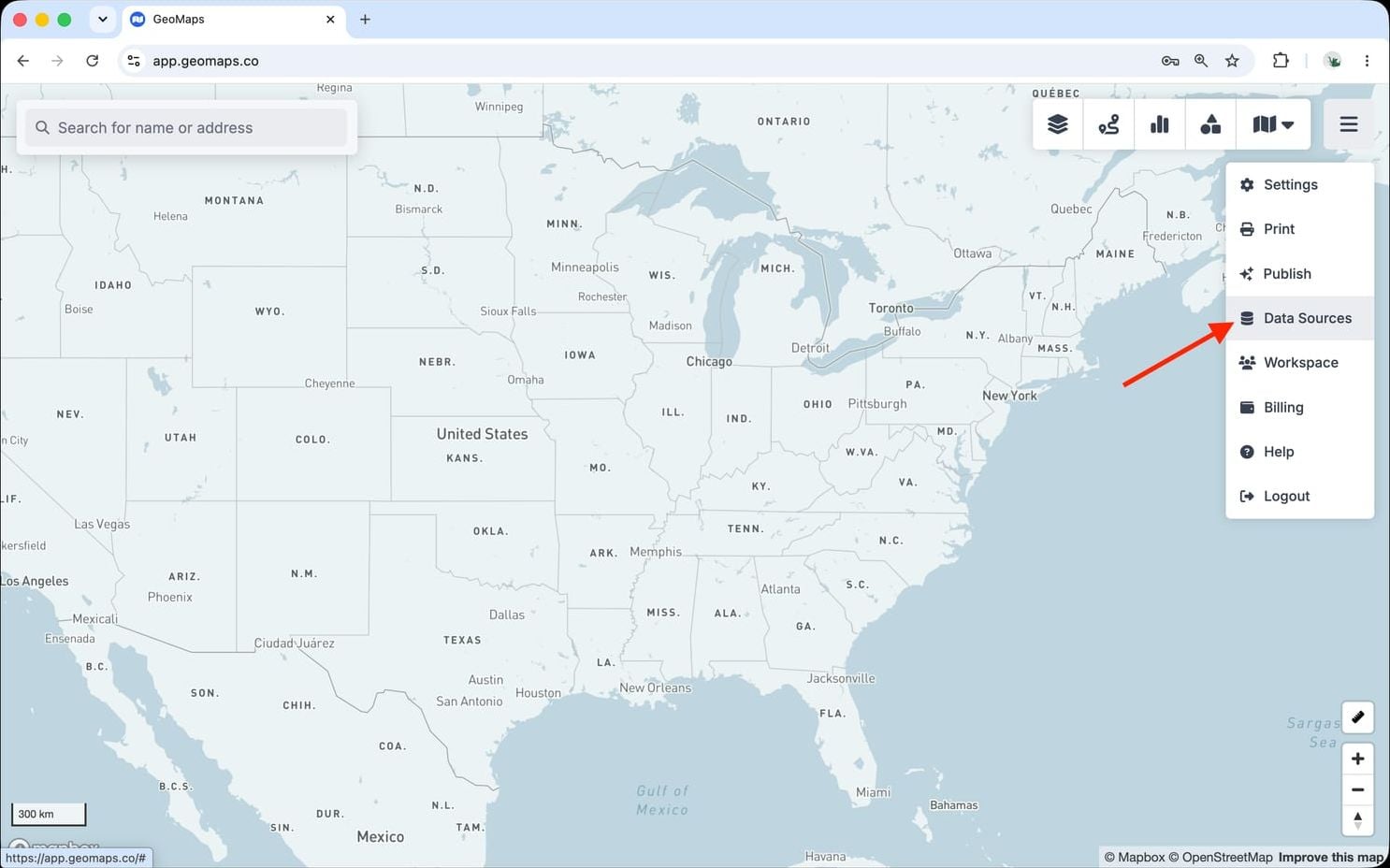
In GeoMaps, open the menu in the top-right corner of the map and choose Data Sources. Add a new source and select Agile CRM to open its connection form.
2. Connect Agile CRM
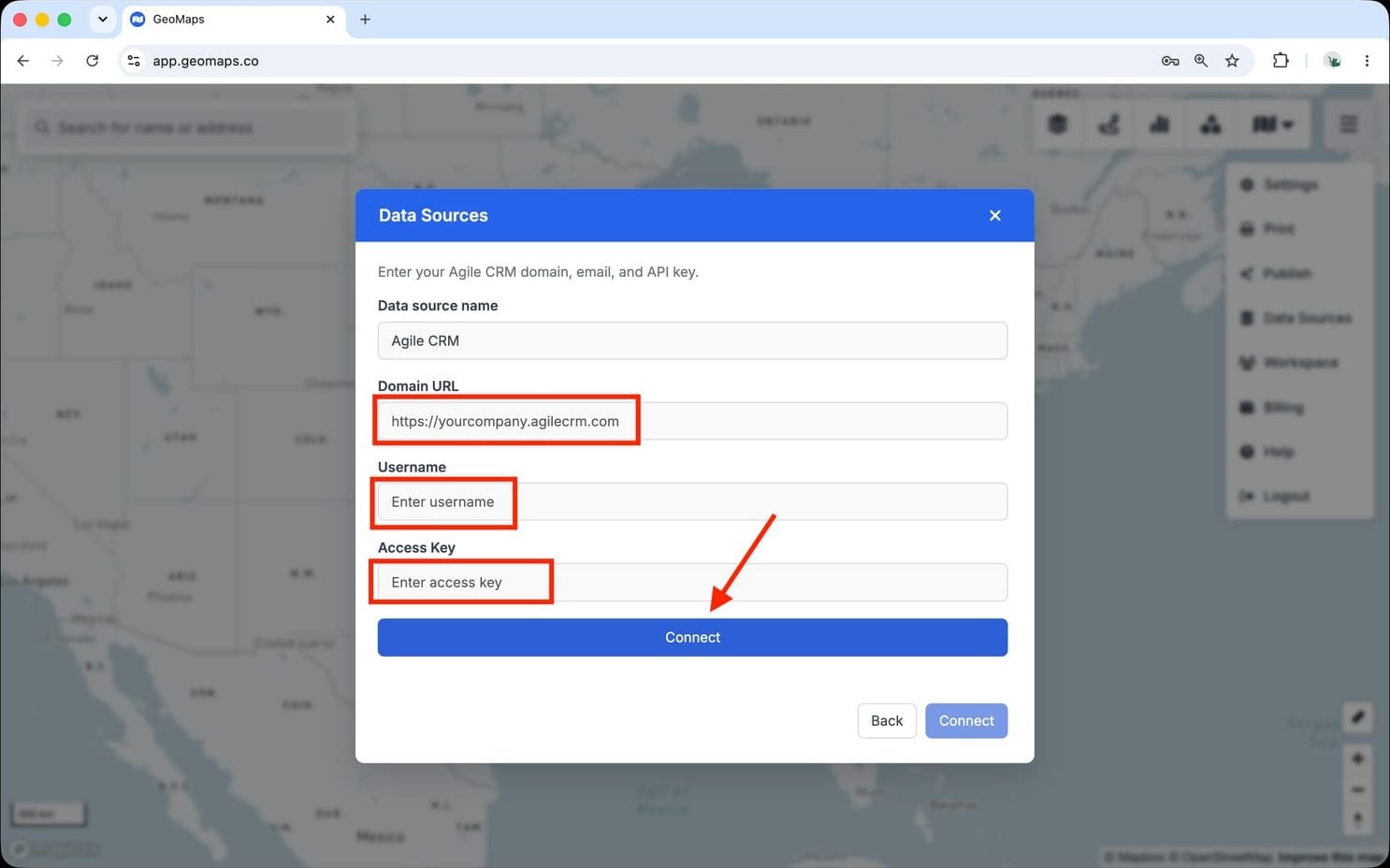
Agile CRM connects with three fields: Domain URL, Username and Access Key.
- In Agile CRM, open Admin Settings → Developers & API → REST API and copy your API key.
- In GeoMaps, enter your Domain URL (e.g. https://yourcompany.agilecrm.com), your Username (the email you log in with), and your Access Key (the API key from the previous step).
GeoMaps imports Contacts, Companies and Deals.
3. Choose what to map
Pick the object(s) you want to plot and confirm which field holds the address (GeoMaps suggests one for you). Every record is geocoded and dropped on the map, then kept in sync on a schedule as your data changes.
Still need help? Contact our team.